iTok Learn
Know what reaches
your stream.
Practical guides for your first setup and your next show. Understand the settings, check the output and know what to do when something does not look or sound right.
Set up your first streamFull Studio access requires an active beta invitation. The public sample is read-only.
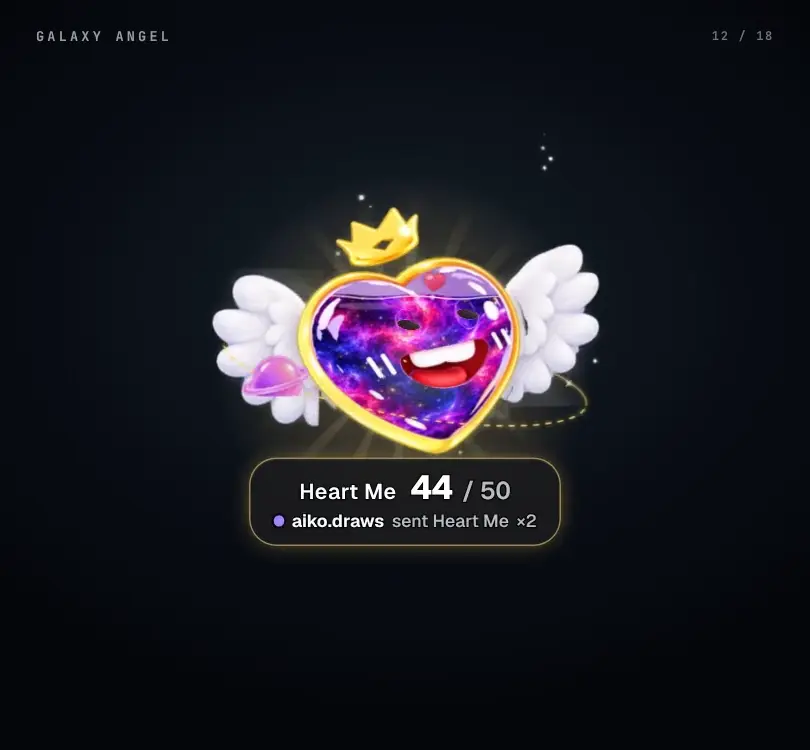
The editor, the saved output and the broadcast each have a different job.
Start streaming
3 guidesStart streamingYour first iTok streamA complete route from beta access to a checked picture and sound.Start streamingAdd iTok to OBS or TikTok LIVE StudioChoose a Browser or Link source, match its size and check audio separately.Start streamingMove a setup from TikFinityMap the tools you use, rebuild one workflow at a time and avoid duplicate reactions.
A few useful distinctions
The words behind the controls.
- Scene
- A saved composition of visible widgets, positions and appearance.
- Source
- The link or capture that puts an iTok picture into OBS or LIVE Studio.
- Event
- Something received from the live feed, such as a gift, comment or follow.
- Action
- The configured response to a matching event, such as sound or animation.
- Preview
- A place to prepare a change before the saved output is applied.
- Fitted link
- A widget source that stays centered in its own frame rather than following the editor’s position.