Status & news

What's new

Known problems, fixes and new features, in plain words. Dates and times are shown in your time zone.

Released improvements

Update history

The latest Studio changes, with earlier releases kept below.
  1. Latest

    More reliable billing updates.

    • Refund and dispute updates now find the correct payment when Stripe sends a charge reference, keeping the affected credits and paid access in sync.
  2. Early access, with clear plan choices.

    • The website and Studio show the public beta end date: November 28 at 12:00 a.m. Eastern Time. View plans opens your existing Plans & credits screen.
    • Compare iTok Studio at $20/month with 100,000 TTS credits and Studio Plus at $30/month with 250,000 TTS credits. Plus includes 2.5 times the TTS allowance; existing yearly plans stay available.
    • Early access supports ongoing development and regular quality updates. Plans include a direct link to give feedback to the owner through the iTok Discord community.
    • Monthly and yearly renewal terms stay visible before secure checkout. Existing subscriptions, paid credits and saved settings are preserved.
  3. TTS and action sounds through iTok.

    • Choose iTok application audio or stream overlay audio directly from TTS, Sound alerts or Actions. One output plays at a time to prevent echo.
    • Action sounds play in the app even with chat TTS off. Action speech follows its own controls instead of the chat TTS switch.
    • Windows desktop 0.1.37 plays the device voice through iTok’s own audio player so it can be included in application-audio capture. Update the desktop app to use this repair.
    • Free voices adds 37 English choices, including American, British and character voices. They run on your device without spending credits; existing voice assignments stay saved.
  4. Beta access stays available.

    • Existing beta access no longer expires after 30 days. Your saved settings and voice credits stay as they are.
    • If access is restored while iTok is open, the app can recover automatically or through Retry now without staying stuck on the access screen.
    • Creator access controls clearly show access without an expiration date and keep organizer revocation in effect.
  5. Connect Four fits your scene.

    • Auto follows the portrait or landscape scene in Studio and on your overlay. Explicit square and custom sizes stay as you set them.
    • The full game window keeps the board visible without scrollbars. Next-round instructions stay beside or above the board instead of covering it.
    • The frame refits when the result, instructions or visible references change, including longer messages and reduced motion.
  6. Your saved voice choices stay visible.

    • Personal and group voice assignments stay in the selector while the voice catalog loads, is filtered or is temporarily unavailable.
    • Recovered voices keep their names in both assignment settings and viewer profiles. Older group selections can be edited without choosing a replacement voice.
    • Your default voice, saved assignments and access rules stay as you set them.
  7. Overlay themes, right below the canvas.

    • Select an overlay to see its available themes below the editor, including the Now Playing music-player styles. Browse with the arrows and see which look is selected.
    • Theme choices stay visible in shorter windows and on phones. Automatic updates and Preview mode keep their existing save-and-apply behavior.
    • Gift and follow alerts clearly explain their separate artwork and where to change colors, text and placement.
  8. Dropdown choices are easier to read.

    • Dropdown menus now keep readable text and backgrounds in Windows light and dark modes, including the overlay category and music-source choices.
    • Selected choices and Windows high-contrast colors stay visible. Existing keyboard controls and saved settings are unchanged.
  9. Song Surge has its matching power-up artwork.

    • Song Surge now uses the pink musical note and yellow lightning bolt on a purple card in the tracker and overlay. Counts, expiry and display controls are unchanged.
  10. Song Surge joins your power-ups.

    • Record Song Surge cards beside gloves, Mist, Time Maker and boosters, with quick Add and Remove controls.
    • New Song Surge receipts keep their five-day expiry. Correcting a total preserves known dates, and expired cards drop out of the display.
    • Song Surge appears in saved inventories and on the Power-Up Tracker. Boards use two viewers per page when needed to fit every power-up and expiry date.
    • When TikTok reports a glove play that could also be a Song Surge, the tracker marks it for review instead of subtracting from the wrong balance.
  11. Power-up holders, in order.

    • Glove holders appear from most gloves to fewest, with the next known expiration beside their inventory.
    • Power-Up Tracker buttons show and hide the display through your saved overlay, even when iTok is closed. Keep the overlay open and connected to the internet.
    • Create a new Power-Up Tracker button and replace the old shortcut button in Stream Deck to use the independent control.
    • The display hides at its deadline and retains its hidden state when an older Studio snapshot arrives. Saved counts and live scores are unchanged.
  12. A clearer voice library.

    • Browse voice results beside a compact Filters panel. On smaller screens, open Filters when you need them and close it to see more voices.
    • Filter Premium voices by language, category, gender and age when those details are available in your catalog.
    • Your current voice stays visible while you browse. Changing a filter leaves your default and personal voice assignments unchanged.
    • Voice results show their preview and selection controls together, with clearer collection details and counts.
  13. Your phone's audio controls, one tap away.

    • TTS and Sound Alerts now have their own bottom tabs on phones and tablets.
    • Home, Studio and All tools stay within reach. Stream Deck and Library remain available in All tools.
    • The new shortcuts keep your saved voice, sound and volume settings. Background audio behavior is unchanged.
  14. Better recovery for voices and connections.

    • When retained settings contain missing viewer voice assignments, Personal voices offers to restore them. Your current assignments, default voice and sound levels stay in place.
    • Voice previews handle remote samples and stalled playback more reliably. A muted preview explains how to turn it up before generating speech.
    • Applying a TikFinity alert import preserves unrelated voice settings, scenes and sound levels. Imported rules remain disabled until you enable them.
    • Automatic LIVE retries recover from temporary startup and monitoring failures, and overlay relinking works for beta accounts. Choosing Disconnect still stops automatic connection.
    • Escape closes the sound picker without closing the alert you are editing or discarding its unfinished settings.
    • Voice settings wait for startup sync. Keyboard navigation from Settings or Profile moves focus into the destination page; Escape returns to the menu button.
    • Music settings and search now show the current music controls, without an outdated link to the retired request queue.
    • The native game overlay uses the correct artwork link for its logo.
  15. Import with your regular Chrome.

    • TikFinity import opens your regular Chrome so you can use your saved Google account. No extension or separate browser profile is required.
    • Choose your TikFinity profile directly in iTok, then review compatible alert conditions before saving. This does not switch your active TikFinity profile.
    • Imports stay separate and disabled until you review and apply them. Existing scenes and audio settings stay in place, and .tfc uploads remain available.
    • Regular Chrome import requires iTok Desktop 0.1.36 or later for Windows.
  16. Import profiles and find voices faster.

    • Import from TikFinity is now at the top of Studio. The updated Windows desktop app can open Chrome for TikFinity sign-in and profile selection.
    • Review compatible alert conditions from your selected profile before saving. The .tfc upload remains available as a fallback.
    • Imports become a separate profile. Your open editor and active scene stay in place until you choose Apply profile.
    • Standard voice browsing starts with all languages and collections. Search, filter and page through the library to find a voice for your stream.
    • Premium browsing clearly labels the collection available to your account. Existing Premium voices and expressive cues remain available.
    • Your saved voices, assigned viewer voices, default voice and TTS on/off setting stay as you left them.
    • A failed search or unavailable voice keeps your previous selection. Browsing alone never starts speech or changes your stream default.
  17. Review older TikFinity profile files.

    • TikFinity 1.61.0 and 1.63.0 profile files can now be reviewed and imported alongside the previously supported 1.70.0 and 1.70.1 files.
    • Compatible gift, follow, share, join and subscription conditions become disabled iTok alert drafts. Review them before enabling.
    • Original sounds, TTS, game controls and commands are not recreated. Importing saves a separate profile and leaves your current scene unchanged until you apply it.
  18. Clearer voice controls and working gift pickers.

    • The app and browser now share one audible output when they are connected to the same LIVE, preventing those sessions from playing TTS together.
    • The Premium voice guide explains ElevenLabs emotion cues, their order, compatible public voice choices and the effect settings that can remove a cue. Browsing the guide keeps your selected preview voice.
    • Gift lists in Sound settings open inside their dialog, with working search, selection and keyboard dismissal on desktop and mobile.
    • Choose a specific LIVE sticker in an action's When step, then select the alert or saved action it should run.
    • The sticker picker fills from stickers received while iTok is connected to your LIVE, with artwork when available.
    • Existing Any sticker rules keep their behavior. A saved specific sticker stays selected after a reload, even before it is received again.
    • Gift jars have separate Gift size and Jar size controls. More valuable gifts appear larger, and combo gifts make individual drops while totals stay unchanged.
    • Connection help and the public signup page now consistently explain that no TikTok bio code is required.
  19. Connect without changing your TikTok bio.

    • Sign in to iTok, save the TikTok username you stream with, and connect. The temporary bio-code step is no longer required.
    • Automatic LIVE connection now works for registered public-beta creators without a bio-code claim.
    • Old verification links take you back to connection setup. Your saved settings, existing TTS credits and account protections stay in place.
  20. Starting Soon stays on screen.

    • Pressing the Starting Soon shortcut again no longer returns to Current Scene. Use Current Scene when you are ready to return.
    • A countdown stays on Starting Soon at zero unless you enable Switch to Current Scene at zero in Stream extras.
    • Returning to Starting Soon after an expired countdown starts a fresh timer instead of immediately switching away. Replaying while it is already showing keeps the current timer.
  21. Quick corrections for power-up counts.

    • Quick Add now has a Remove 1 button under every power-up tile, alongside the existing one-tap add control.
    • Remove one without opening Edit counts. Zero and unknown counts cannot go below zero.
    • Removing a glove keeps the expiration dates of the remaining gloves and leaves other power-ups unchanged.
    • Choosing a viewer shows only that person's recorded counts, without an overall LIVE total alongside them.
  22. Find power-up holders and create their Stream Deck button.

    • Create a Power-Up Tracker button beside the LIVE controls or on the Stream Deck page, with the existing glove artwork.
    • Press the button to show saved holders; press again to hide them. Creating a button does not change inventory or show an alert.
    • Find a viewer by name or @username in the power-up panel and quick add, without scrolling through a dropdown.
    • Search an exact TikTok @username, or add a known viewer by name when they are missing. New counts remain unknown until you record them.
  23. Scene controls and Stream Deck buttons within reach.

    • Starting Soon, End Credits and Current Scene stay visible along the bottom of Studio.
    • Each scene and sound on the Stream Deck page has a direct Create button action.
    • New scene buttons get an unused shortcut automatically; existing shortcuts stay the same.
    • Drag the downloaded button file onto a key in Stream Deck. Advanced shortcut options remain available.
  24. Clearer labels on red controls.

    • Red buttons now use white labels, including Copy overlay, Add to overlay and Stream Deck setup.
    • The red fill is slightly deeper to keep white text readable in normal and hover states.
    • Enabled TTS and sound-alert switches also use white labels.
  25. A clearer workspace for your whole show.

    • A compact sidebar puts icons above readable labels, with dedicated Tutorial and Stream Deck pages.
    • Browse overlays on the left, arrange your full scene in the middle, and edit the selected overlay on the right.
    • Hover or focus an overlay name to preview it. Adding it stays a separate action, so browsing preserves your scene.
    • Copy your portrait or landscape overlay link beside the editor, then follow the setup steps for OBS or TikTok LIVE Studio.
    • TTS and sound controls group the settings you use most, while keeping advanced controls available.
    • Create Stream Deck buttons from your saved sounds and scene shortcuts on the dedicated Stream Deck page.
    • Your saved scenes, voice choices and stream connections stay in place.
  26. Clearer TTS playback failures.

    • A Device voice that ends without starting is now reported as unavailable, instead of incorrectly appearing as finished in playback history.
    • Late events from a canceled Device voice can no longer interrupt or misreport the next message.
  27. Voice removal saves correctly.

    • Use default removes a person's saved TTS voice assignment immediately, without an extra Save step.
    • Removing voices from a random selection now saves correctly: one remaining voice becomes a single voice, and removing every voice restores the stream default.
  28. Compact navigation. Your shortcuts on Stream Deck.

    • The sidebar keeps compact rows in large windows, with Live, Play, Audio & actions, Community and Library grouped together.
    • Short windows keep the main tools accessible without a visible sidebar scrollbar. More tools & settings still opens the complete tool list.
    • Assigned sound and scene hotkeys can download a matching Windows Stream Deck button, ready to drag onto the key you choose.
  29. Reliable scene links. Independent power-ups.

    • Power-ups can appear on your LIVE even when the battle score overlay is hidden.
    • The updated desktop app reconnects your own OBS overlays when your iTok session changes, preserving their size, position and selected format.
    • A stalled window ownership check no longer holds up later overlay changes indefinitely.
  30. Your LIVE audience. Familiar sidebar colors.

    • Add Viewer count from Live Studio’s Widgets to show your current audience with a clean person icon and transparent background.
    • Choose the color, show or hide the label, and use full or short numbers. Place it with your other widgets or copy its own fitted overlay link.
    • Uses your existing LIVE connection. It shows zero when the LIVE ends and a dash while the count is unavailable.
    • The sidebar’s original section colors and icon tiles are back, with compact navigation and the settings popup retained.
  31. Reliable reconnects. Easier navigation.

    • After a connection restarts, current LIVE messages can establish the correct room again instead of being silently rejected against an old room.
    • The main sidebar fits without its own scrolling. Goals and Heart Me remain inside Live Studio, and More tools & settings opens the full tool list.
    • Studio options opens in a keyboard-accessible popup that stays within the window on desktop and mobile.
  32. Show your prize. Run your giveaway.

    • Add Auction & giveaway from Live Studio’s Widgets, upload a prize photo, and copy its fitted overlay link.
    • Auction totals each viewer’s real gift coins, shows the top three and counts down to the result. Optional last-second extensions are limited; tied bids stay tied.
    • Free giveaway accepts one chat-command entry per viewer, then lets you close entries and draw a winner. Gifts do not add giveaway entries.
    • Prize and rules lock during each round. Rounds pause on connection loss and after reopening Studio so you can review before resuming.
  33. Power-ups stay visible over the score.

    • Opening a viewer’s power-ups or the saved power-up board now brings it in front of the battle score and frame.
    • Your saved scoreboard positions, power-up counts and display timing stay the same.
  34. TTS starts while the voice is being generated.

    • Live TTS can start playing the first audio as it arrives, instead of waiting for the whole voice clip.
    • Your selected voice and audio quality stay the same. New text still needs a little time to generate.
  35. Less waiting before TTS speaks.

    • Ready speech no longer waits for optional cache and usage-log writes, and existing credit wallets avoid repeated setup work.
    • Voice choices, audio quality, credit checks and protection against duplicate playback remain in place.
  36. Kitty and Angel Wings for Heart Me.

    • Heart Me has two new characters, Kitty and Angel Wings. Choose one in a Heart Me goal’s style or in Heart Me characters.
    • The Halloween characters are no longer offered. A goal that already uses one keeps it, with its count, target and position, until you choose another character.
    • Galaxy Angel and the other characters are unchanged, and nothing switches on its own during a LIVE.
  37. iTok beta is open.

    • Sign in and start using iTok without waiting for a manual beta invitation.
    • Verify your TikTok once with a temporary bio code to connect your LIVE and unlock eligible starter voice credits.
    • Each TikTok account belongs to one iTok account. Disconnecting, renaming or recreating an account does not refill starter credits.
    • Existing beta accounts keep their saved layouts, connections and remaining voice credits.
    • Older Heart Me character selections now recover automatically when a hidden scene look was masking them.
  38. Your selected style stays selected.

    • Choosing a Heart Me character now replaces an older goal scene look, so the canvas and stream show the character you picked.
    • Widget and alert edits use the current preview settings when you add them, while keeping unrelated updates and saved positions.
  39. Ready when you go LIVE.

    • Keep iTok open with automatic connection enabled: it watches for your LIVE without repeatedly opening offline stream connections.
    • A confirmed LIVE ending clears that session’s counters and gift jar. Temporary connection drops keep your progress, saved settings and layouts.
  40. A full, private design review.

    • The owner can review current pages in a private gallery, including full desktop captures that can be enlarged on a phone.
    • Current app previews and proposed designs are clearly separated. Existing stream controls, saved settings and output behavior stay in place.
  41. Find everything in a clearer Studio.

    • Tools are grouped by what you want to do: prepare your show, arrange widgets, manage audio, automate reactions or look after your audience.
    • Goals, Heart Me, friends, community tokens and beta feedback have clear navigation entries. Your existing settings stay in place.
    • Find a tool or setting with / or Ctrl+K. Searches such as no sound, timer and song requests open the relevant controls.
    • On phones, use Home, Studio, Library and Games, or open All tools for the full directory, guides and update history.
    • Stream controls groups gift display, preview motion and update checks together. Clearer headings, clickable switch labels and keyboard controls make the pages easier to use.
    • Library sections, game controls, Chatbot and music setup fit narrow screens more reliably.
  42. Your music player stays on screen.

    • Music players stay visible when no song is detected or playback goes idle, instead of disappearing from your stream.
    • Live song details return automatically when the selected music source reports a track. Your saved style, size and position stay in place.
  43. Cleaner scenes and clearer connection status.

    • Animated Heart Me characters stay hidden during Starting Soon and full-screen credits, then return in their saved positions.
    • Music widget settings now show the desktop connection status, including missing desktop support, paused playback and when Spotify or Apple Music needs to be opened.
    • TTS instruction settings explain when the sign is hidden because chat TTS is off, audio is muted or iTok is disconnected from TikTok LIVE.
  44. Restore activity when connecting to a new LIVE.

    • Fixed a connection issue that could block incoming likes, gifts and chat TTS when a previous LIVE was saved.
    • A new connection now recognizes its current room even when the provider does not send room information. Later activity from other battle rooms stays excluded.
  45. Keep your LIVE totals after a battle.

    • Activity from another battle room no longer resets your like counter or clears your Top Gift. Your totals stay with your own LIVE when you leave a battle.
  46. Make your gift display yours.

    • Gift display has a clear icon and focused Gifts & text controls with a live preview.
    • Write your own multiline message for each gift, or leave it blank. Choose font, size, color, bold, alignment and a readability outline.
    • Let the gift artwork float gently or keep it still. Text stays steady, and saved displays keep your formatting.
  47. Place gifts exactly where you want them.

    • Add a Stationary gift display from Gifts & alerts, with up to three gifts across each row.
    • Give each gift its own text underneath, or leave the text blank to show only the artwork.
    • Move and resize the display on your canvas, save it to My overlays, or copy its widget link. The scrolling gift bar remains separate.
  48. Your music, straight from your player.

    • Music now focuses on your own playback. Song Requests has been removed from Studio.
    • On Windows, connect Spotify or Apple Music on this PC to show your current song and album cover, without a song-request account or additional provider sign-in.
    • Apple Music detection requires the updated desktop app. Older versions show Update iTok instead of connecting to the wrong music player.
    • Existing music selections and overlay layouts are preserved until you choose a different source.
  49. Keep Starting Soon clear.

    • Top Likers stays hidden while Starting Soon is showing, including Crown Classic and separately copied Top Likers links.
    • Returning to your scene restores Top Likers without changing saved positions, styles or like totals.
  50. A clearer way to reconnect your account.

    • If the access service cannot be reached, Retry now checks again immediately and shows when the check is running.
    • Reload iTok reopens the current app page without changing your saved scenes or settings. The recovery screen also explains why closing the desktop window can leave iTok running.
    • Returning to iTok or restoring your connection requests a fresh access check. Access resumes only after the same signed-in account is verified.
  51. Widget links that fit their own source.

    • Copying an individual widget now makes a centered, fitted source by default. Editor placement, size and visibility no longer move or hide that source.
    • Position and resize a copied widget directly in OBS or TikTok LIVE Studio. Its saved design and live values still update from iTok.
    • Existing single-widget links get the same independent fitting after loading this update. Entire scene links keep the full editor layout.
    • Setup instructions and guides now explain the single-widget and entire-scene choices without a second copy mode.
  52. Your jar colors and supporters, clearly.

    • Changing a robot jar color redraws it even when preview motion is paused, without moving the gifts.
    • Robot colors are visible swatches in both Style and Settings, with a custom color picker.
    • The rotating supporter label now includes their public profile picture beside their name and coins. If their picture cannot load, their initial keeps the space readable.
  53. One key to show or hide your tracker.

    • Press your Power-Up Tracker shortcut once to show it, then press the same shortcut again to hide it.
    • The toggle works through the existing background hotkey controls and keeps your scene, glove counts and expiry dates unchanged.
  54. Clearer jars and power-ups.

    • Gift jar labels can rotate between the goal and the latest public supporter’s name and coin amount. Set the time per label in jar Options.
    • Pocket Bot is featured first in the animated jar styles. Choose Original, Ocean, Rose or Midnight, or pick a custom shell color.
    • Changing colors or rotating the label keeps the settled gifts in place. Existing jar styles, positions and totals stay saved.
    • Gift Gallery tiles use their regular lit-up artwork, avoiding tiny or clipped full-screen gift animations. Newly completed gifts still appear immediately.
    • Power-Up Tracker puts glove holders first, then mist holders, before other saved powers.
    • Assign a Power-Up Tracker shortcut from the tracker, or use its Ctrl+Alt+P setup button. It shares the existing background hotkey controls.
    • Recorded glove expiry dates appear on the stream card and in quick-add inventory. Undated holdings say expiry unknown; showing the tracker does not extend their lifetime.
  55. Smoother gift endings.

    • Gift effects now remove their finished display before releasing playback resources, avoiding an unsafe handoff between animations.
    • Gift artwork, animation timing and sound settings stay the same.
  56. Cleaner League Countdown playback.

    • Removed a single dark frame from the League Countdown gift animation in large effects and gift widgets.
    • The animation keeps its original detail, four-second duration and silent audio behavior.
  57. A fresh game for your next LIVE.

    • After a confirmed LIVE ending or a verified new LIVE room, Connect 4 clears the current board, seats and waiting queue so new players can join a fresh game.
    • Temporary disconnections keep the current game. Your game preferences and recorded wins and history stay saved.
    • The compact Top Gift widget hides its still image as soon as animated artwork is ready, removing the lingering poster during that handoff.
  58. Test your alerts on stream.

    • Test the selected alert from its placement settings on your linked overlay, using its saved look and position. Hidden alerts appear temporarily for the test without changing your saved visibility.
    • Heart Me level-up tests use the selected level and saved character. Apply preview changes first to test a new look or position.
    • Tests are visual only. Stop test ends the test while keeping real alerts, counts, music and TTS intact.
    • Animated gifts keep their decoded frame through the outgoing turn, avoiding a flash of the still image at the end.
  59. TTS setup takes fewer steps.

    • Turn on TTS starts chat reading and requests playback in your active iTok window, without a separate setup button.
    • Choose all comments or a command and select a voice in the main controls. Playback options, cooldowns and message limits remain available when you need them.
    • Saved enabled TTS attempts to restore playback. If your browser requires a click before playing sound, use the visible Resume or Retry control.
  60. More reliable final scores. Clearer series settings.

    • An incomplete battle final can recover missing scores from its matching verified connection update, helping the current series round settle correctly.
    • The series panel shows the applied format separately from a pending selection. Choose Apply format to use the new selection while keeping the current wins.
    • Explicit final scores and manual corrections keep priority. Historical rounds are not recalculated.
  61. Starting Soon keeps your scene clear.

    • Connect 4 in the scene overlay and its widget sources stays hidden during Starting Soon and full-screen end credits, then returns when you show the current scene.
    • Your Starting Soon tap goal remains visible. The game keeps its existing board and continues while its display is covered.
  62. Gift jars keep their history.

    • Gift jars keep received public gifts represented after the jar fills. Pictures shrink or group together as more gifts arrive instead of disappearing at the fill target.
    • Large mixed inventories count additional gift kinds in an Other gifts group. Grouped quantities stay part of the jar total.
    • Reopening the overlay or changing the jar look restores its saved gift history. Empty jar and a new LIVE still start fresh.
  63. Drawing recovery, steadier scene saves and battle speech.

    • Drawing stays available when all viewer connections are in use. A stalled connection now offers Reconnect drawing instead of leaving the controls waiting indefinitely.
    • Stream extras opens with Starting Soon, followed by End credits, Drawing and Commercials.
    • Scene switching handles trimmed text consistently and stops with a clear message if the saved scene differs from the preview, preventing repeated saves.
    • Winner and MVP announcements take priority over chat speech and stay queued when a burst of chat arrives.
  64. Home is readable and responsive again.

    • Home uses the available screen width again, with readable cards and working buttons after opening Top Likers or the overlay editor.
    • The Top Likers badge keeps its existing appearance and animation. Your saved layout, counts and account settings stay in place.
  65. Clearer canvas controls and the primary LIVE connection.

    • New LIVE connections use the primary connection service again.
    • Your saved TikTok username, overlays and settings stay in place.
    • Remove a Heart Me goal or an individual alert from the canvas without hiding its siblings. Restore it from its settings when you need it again.
    • The canvas menu keeps lock, reset and artwork flip controls together. Right-clicking another widget keeps the menu in view instead of jumping to Settings.
  66. Room for 100 invited beta creators.

    • The invited beta now has capacity for 100 creators.
    • Existing invitations, expiration dates and access remain unchanged. Beta app access stays free and invitation-only.
  67. Battle series wait for the real result.

    • An early battle cleanup message no longer records a false 0–0 tie. iTok keeps the last score and waits for the confirmed final result before updating your series.
    • Repeated final messages count only once. Valid wins, losses, ties and manually corrected series totals are preserved.
  68. Creator access controls load reliably.

    • The Creators dashboard loads its full activity diagnostics without blocking the creator list or beta invitation controls.
    • If activity diagnostics are temporarily unavailable, the dashboard says so while keeping beta access controls available. Existing invitations and expiration dates are unchanged.
  69. Crown themes, clock previews and reliable access checks.

    • Crown Classic is now a named Top likers theme and the default for new setups. Find it under Style, with its rotation controls in Settings. Existing saved looks and positions are preserved.
    • Classic list, Graphite and Daylight remain available. Previewing, changing themes and reopening the editor keep the selected design consistent.
    • All four Giftathon clock themes remain visible in the catalog and theme preview when preview motion is paused or reduced.
    • TikTool's reported room like total is now picked up when a verified room connects and survives saved-state loading. Room totals remain separate from each viewer's received likes.
    • Like-tracking diagnostics distinguish incoming taps, filtered messages and taps saved to the ranking, helping trace incomplete viewer counts.
    • A temporary sign-in check failure no longer says beta access was revoked. iTok retries and restores your workspace when the same account is verified. Expired sign-ins show a Sign in action.
  70. Animated clocks, Crown Classic and cleaner jar controls.

    • Choose Pitstop, Flip Studio, Halo or Tide Glass for your Giftathon timer. Added time appears with the supporter’s name, including fractional seconds, and your selected-gift reminder still shows above the clock.
    • Long supporter names stay at a readable size and reveal inside the clock’s label. The digits, flipping panels, dial or water level follow the time remaining.
    • Choose Crown Classic in Most Likes to show your top three likers one at a time in one spot. Gold wears the crown, silver and bronze wear their medals, and the name and like count sit underneath.
    • Set how long each rank stays, from 2 to 20 seconds, and whether an open gold spot invites viewers to be first before anyone has liked.
    • Long names stay at full size and scroll inside their plate at a readable pace. Counts of a million or more read as 1.23M, and a missing photo shows initials.
    • Use Size for phone viewers for larger clock and Crown labels in two-host or landscape streams. Existing looks and saved positions change only when you choose to edit them.
    • Jar style cards now have compact copy controls. Each card copies its own fitted look; the main Copy this widget button still follows your saved editor layout. Setup instructions remain available after copying.
  71. Four living gift jars.

    • Choose Arcade Capsule, Moon Cradle, Pocket Bot or Bloom Vault for your gift jar. Gifts drop in and settle, and each jar reacts in its own way.
    • The jar’s own label shows your heading, the coins received and your coin goal. Large values use readable K, M or B labels; the exact totals and goal state stay intact. Empty jar plays the jar’s own emptying motion.
    • Use Size for phone viewers to make a jar larger for LIVE battles and landscape streams. A saved position changes only when you choose a size.
    • Your current jar look and saved layouts stay as they are until you choose a new look.
    • The TTS guide now explains that its tutorial video is an inert demo with prerecorded Laura narration that never plays on your stream.
  72. Clearer previews. More reliable controls.

    • Heart Me and widget previews keep showing the selected artwork while Starting Soon or end credits is on stream.
    • Multi-person battles keep every known participant when a score update is incomplete. Older finish messages cannot interrupt newer battle activity.
    • Enable TTS also starts this device’s audio player. Turning chat TTS off preserves independent battle announcements. Two narrated tutorials now show this simpler flow.
    • Invited creators can find and add a specific viewer to an Action, and Check Sample uses that selected account.
    • The overlay editor keeps its canvas and scene controls reachable in stacked and side-by-side layouts. Settings search also finds scene and sound hotkeys.
    • Music requests show a setup action when a TikTok account is missing, instead of waiting indefinitely.
    • Placing a Heart Me level-up keeps other alerts in their saved positions.
  73. Battle scores that stay with the match.

    • An empty countdown update no longer ends an active battle early or shows its MVPs before the round finishes.
    • Three- and four-person battles update every participant even when the full lineup arrives after the opening message.
    • Delayed score messages cannot rewind the battle clock or replace newer scores. Reported timer extensions remain supported.
    • Invited beta creators can now load the names and photos of opponents in their current battle.
    • Release checks now include the full battle-to-overlay path, winner and MVP audio, reconnects and separate accounts alongside the existing TTS and overlay checks.
  74. Watch the steps. Hear the explanation.

    • All 30 video tutorials now include Laura narration, timed with the actual cursor, clicks and controls.
    • Follow narrated walkthroughs for Heart Me placement, battle layouts, TTS setup and troubleshooting, scenes, music, goals and the other Studio tools.
    • Pause, seek a chapter, adjust the volume or read captions at your own pace. Tutorial playback does not use your TTS credits or change your stream.
  75. Video tutorials. A clearer view of what’s new.

    • Open Tutorial in the sidebar for 30 short videos with visible cursor movement, click highlights, captions and chapter links across the main Studio workflows.
    • Follow five TTS lessons for setup, viewer access, personal voices, credits and silent-message troubleshooting. Read all 21 website guides inside the app, with related videos and links to the actual controls.
    • Ask a how-to question to find a matching walkthrough using built-in search. No paid AI calls are needed to browse, search or watch tutorials.
    • New this week groups recent widget improvements with their controls and tutorials, plus every release from the past seven days.
    • Updated this week badges in the widget library show which widgets changed recently. Watching a tutorial does not alter your live stream.
  76. Two new music players.

    • Now Playing adds Click Wheel, a pocket player with album art and a pressing wheel, and Gold Cassette, a portable tape player with turning reels and piano keys.
    • Pause, resume and song changes press the matching controls. Progress, reels and volume follow what your music source reports, and song covers keep their own colors.
    • Choose Original, Graphite, Silver or Cherry for each player, or set your own shell and accent colors. Each saved scene keeps its own finish.
    • Your current music style, saved scenes and placements stay as they are until you choose one of the new players.
  77. More reliable actions. Editable audiences.

    • Change a join action from Specific viewers to Everyone, Heart Me or another audience without rebuilding the action.
    • Selected accounts, sounds and other responses stay saved when you switch audiences and return.
    • Valid LIVE events can use their reported message identity and time when older metadata is empty. Join and subscription labels are handled consistently.
    • First Gift clearly means the first completed gift of any type or value. Choose Gift received when you want a gift or coin filter.
    • Open gift and sound pickers stay inside the window when you resize or scroll the editor.
  78. Steadier layouts. Clearer scene controls.

    • Battle opponents load alongside scores. Widgets keep their saved positions unless you enable Allow widgets to move for battles.
    • Right-click a bottom scene tab to edit or rename it. Rename inactive scenes without switching LIVE; saving avoids repeated thumbnail work.
    • Starting Soon and End Credits have separate color presets and custom colors. Guest changes no longer interrupt either presentation.
    • Add one Heart Me goal per scene. Existing extra copies stay saved but hidden, and the flip menu targets the visible goal.
    • Giftathon additions stay visible through updates. Gift Gallery celebrates newly lit gifts once, with a silent preview that keeps progress unchanged.
    • Use letters, numbers, arrows and more for sounds or scenes. Windows background support requires Desktop 0.1.32.
    • Search TikTok in Actions, check the profile and Add it. Specific-viewer triggers use stable account IDs when usernames are missing.
    • Sound-only actions no longer wait for visible alerts to finish. Your sound queue preferences still apply.
  79. Gift Gallery unlock celebration.

    • When a gift newly lights up in your Gift Gallery, a short card plays on stream with its gift and public supporter.
    • Gifts already lit when the overlay opens or reconnects never replay. New completions play once, and hidden overlays skip them.
    • Preview the celebration in the editor or send a clearly labeled sample to your stream without changing gift progress. The optional chime is off by default.
  80. A shortcut for every saved scene.

    • Assign a hotkey beside each saved scene in Live Studio. Renaming a scene keeps its shortcut; deleting it retires the shortcut.
    • Switch to saved scenes while iTok Desktop is in the background, using the same shortcut controls as your sounds.
    • Switching focus or minimizing no longer re-registers unchanged background shortcuts, removing a gap where a press could be lost.
    • Sound and scene shortcuts share conflict checks, so an assigned key cannot silently trigger the wrong action.
    • Leaving a text field for another app restores background shortcuts even when the old field retains focus.
  81. Live battle updates restored.

    • Battle scores from the current LIVE connection reach the overlay without waiting for an unavailable extra message.
    • Battle countdown and end-of-round updates follow the provider’s reported state, while cleanup messages keep the confirmed result intact.
    • Team battles use the actual creators on each side and count the reported team total once.
  82. Smoother previews. Music with more life.

    • Browse music and widget styles without the preview jumping under your pointer.
    • Right-click music to flip its artwork while keeping song names readable. An old hidden Heart Me goal no longer blocks flipping the visible one.
    • Orbit CD displays the current song cover on its spinning disc, with the original disc as a fallback.
    • Music players tap Next when a new song arrives, without replaying the tap when an overlay reopens.
    • Desktop 0.1.31 lets the Dashboard FM knob follow observed Windows music volume. Supported Spotify account connections also provide device volume.
  83. Comment goals and adjustable countdowns.

    • Add a Comment goal in Starting Soon or Goals. Each received chat message adds one, including chat commands, with duplicate protection on reconnect.
    • Set your own comment target and show its current progress using any of your existing scene looks.
    • Adjust a running Starting Soon countdown by 30 seconds or set its remaining time without restarting the scene or resetting your goals.
  84. Saved placement locks and background shortcut recovery.

    • Lock a widget’s position and size from its settings. Locks are saved separately for each scene and orientation, including after reopening the editor.
    • Automatic battle spacing leaves locked widgets in place instead of moving them around the battle card.
    • Desktop 0.1.30 reconnects the Windows shortcut helper if it stops, so an old registration is no longer reported as connected.
    • Support diagnostics now show background shortcut readiness, registration and conflict counts, and the last received assigned shortcut. Shortcut keys, sound names and audio are not collected.
  85. Community Tokens and a clearer stream workspace.

    • Community Tokens has its own page for your currency, earning rules, levels and host-managed rewards. Programs start paused until you enable them.
    • Accepted LIVE activity and completed Connect 4 games can earn tokens. Search balances, review transactions and recover interrupted requests without duplicate changes.
    • Position on stream opens a movable canvas beside the same running game. Scene and portrait/landscape placements stay separate.
    • Connect 4 Follow uses the game's public Players, rankings and Tournament views. Host Settings stay private; existing Board-only choices are preserved.
    • Larger Connect 4 labels and countdowns use Full phone or Two hosts viewer layouts. The smallest landscape view prioritizes the active player and board.
    • The music style picker now offers Dashboard FM, Orbit CD, Pocket Boom and Jukebox Lounge. Choose player style opens it from Music.
    • A newly lit gallery gift appears immediately. Rotating single tiles then return to unfinished gifts; completed gifts remain available in the Lit gallery view.
    • Gallery targets show how many gifts remain. Scooter fills its tile without clipping. Level-up artwork flips only in the selected scene and orientation, with a matching preview.
  86. English-to-Spanish caption trial.

    • An owner-only trial can turn English microphone speech into Spanish captions, with an optional bilingual display.
    • The trial has a separate caption source and stops after five minutes. Start and Stop control the microphone; sample previews stay local.
    • The trial is not enabled for other creators yet. Its live accuracy and delay are being evaluated before wider availability.
  87. New animated scenes and music players.

    • Firefly Conservatory, Pearl Lantern Grotto and After Hours Café are available for Starting Soon and end credits, with matching animated scene transitions.
    • Choose Dashboard FM, Orbit CD, Pocket Boom or Jukebox Lounge for Now Playing. Their lights, discs and speakers move while your music plays.
    • Hardware music players include a compact layout with larger song text. Player artwork and effects resize together in the editor and stream overlay.
    • Existing scene designs, music sources and saved positions stay selected until you choose a new look.
  88. Show your drawing on your existing overlay.

    • Draw on Stream now connects automatically to your existing vertical or landscape entire-scene overlay. Switch on Show drawing on stream; no extra browser source is needed.
    • Ink uses the same canvas size and position as the rest of your overlay, including when the browser source has extra space around it.
    • A separate drawing-only link remains available as an optional setup. Individual-widget and audio-only links keep their own content.
  89. Draw straight onto your stream.

    • Open Stream extras → Draw on Stream to sketch with a pen, highlighter or eraser. Choose your color, size, opacity and how long each stroke stays.
    • Undo, redo and clear your drawing. Portrait and landscape keep separate canvases.
    • Copy the transparent drawing overlay into OBS or TikTok LIVE Studio. Ink updates through a direct connection; the controls and preview grid stay in iTok.
    • Practice with the drawing hidden, then turn on Show drawing on stream when ready. Drawing does not alter your scores, alerts or audio.
  90. Let the countdown bring your scene back.

    • Starting Soon can transition to Current Scene when its countdown reaches zero. Turn on Switch to Current Scene at zero in its countdown settings.
    • Double-tap your Starting Soon or End Credits hotkey to return through the scene transition. A single press still shows that presentation immediately.
    • Windows Desktop 0.1.29 supports quick separate hotkey taps and keeps shortcuts available when a window with an open dialog is minimized. Held keys do not repeat.
  91. Jump straight to the tutorial step you need.

    • Learn walkthroughs can fetch the part of the video you select, so jumping to a written step does not wait for the earlier footage.
    • Both recordings retain their full quality, captions and written instructions. Playback starts only when you choose Play.
  92. Follow the whole workflow, from setup to output.

    • Learn now has 21 guides and two captioned Studio walkthroughs, including imports, battles, viewers, camera setup and wheel points.
    • Open help for the widget you selected, including its relevant guide section and the distinction between Heart Me gift goals and membership effects.
    • Before this show separates connection evidence from your own picture and audio checks. New settings, scenes or LIVEs require another review.
    • Review private guide feedback before sending it. Selecting a helpfulness answer does not submit a report, and guide feedback leaves diagnostics off by default.
    • External action responses explain missing pairing, loading, errors and disabled targets. The comparison also explains limited TikFinity profile imports accurately.
  93. Guides for the whole streaming setup.

    • Find 14 detailed setup and troubleshooting guides in the new Learn center, with searchable topics and a sourced iTok–TikFinity comparison.
    • Open Guides & help from any Studio tool for relevant checks, a full guide and a direct route to the controls. Feedback and known issues remain separate.
    • Source setup and the first-stream checklist now link to full instructions for picture, sizing and audio.
    • Gift gallery, Coin jar, Song requests and Social media are listed as available shortcuts instead of planned tools.
  94. Four animated Halloween hearts.

    • Choose Pumpkin Patch, Witch’s Brew, Vampire Velvet or Ghost Party in Heart Me’s character picker.
    • Each look keeps its animated artwork, gift reactions, filling heart and goal celebration when used in your linked overlay.
    • Your current character and saved placements stay as they are until you choose a new look.
  95. Scene transitions at your fingertips.

    • Assign hotkeys for Starting Soon, Current Scene and End Credits directly beside their On-stream scenes controls in Live Studio.
    • Scene shortcuts use the same transitions as the buttons. Replaying credits preserves the current roll, and Current Scene returns through the normal curtain.
    • Shortcuts are saved for your account on this device. Shared sound and scene keys are flagged, and the existing background-hotkey setting also controls scene shortcuts.
    • A shortcut pressed during a brief sound-settings save waits for the current assignments, instead of disappearing while the library refreshes.
  96. Soundboard hotkeys stay ready.

    • Closed connection dialogs no longer block sound hotkeys when you return to iTok. Closing an open dialog restores eligible shortcuts immediately.
    • Changing volume or using a checkbox keeps sound shortcuts available. Text fields, active shortcut recording and visible dialogs still pause them.
    • Assigned function keys prevent browser actions such as F5 Reload, and the board’s 1–9 keys use the same focus rules.
  97. Sound hotkeys that recover.

    • Assigned sound shortcuts work as soon as you finish recording them, without clicking elsewhere first.
    • If desktop shortcut registration fails, available in-app keys still work. Background shortcuts retry their connection automatically.
    • Shortcut status explains connection problems and shows readable key names when another app is using a shortcut.
  98. Faster Connect Four. Clearer next steps.

    • Moves reach connected stream sources sooner, without waiting for their next scheduled refresh.
    • Reconnect recovery keeps the latest board and avoids replaying old animations or sounds.
    • Choose Follow game window to show the game, Settings and Players views as you open them. Board-only and manual stream views remain available.
    • See the queue beside the board and use labeled Release seat buttons on player cards. Releasing an active seat pauses the board without adding a win or loss.
    • After a LIVE win, the loser’s seat opens immediately, the winner stays and the next eligible queued player takes the open seat. Both players confirm ready before the next round.
    • A centered result panel explains who won, who is next and how to join or get ready. Larger board labels and fitted winner names stay readable in phone-size output.
    • Draw rematches alternate the opening player. Auto-sized standalone game sources fit both portrait and landscape canvases.
  99. More life in your scenes. Clearer controls.

    • Moonlit Bloom has more natural movement: branches sway, individual blossoms move and petals drift around the scene. Starting Soon and credits keep the same readable layout and curtain transition.
    • Choose a named alert to position. Gifts, follows, shares, Super Fans, joins and Heart Me alerts can each have their own position, size and flip in each scene and orientation.
    • The selected alert has a labeled sample and selection box. Test on stream plays it on your linked overlay; changing the selection only previews it in the editor.
    • Copy this widget keeps its saved editor size, position and look. Entire scene is a separate choice, with an optional fitted widget link for independent placement in your streaming app.
    • Home separates TikTok connection, received events and overlay-source presence. An optional setup guide covers connecting, adding a widget, copying its link and testing on stream.
    • Queued gift animations can prepare the next clip while the current clip plays, reducing download waits between effects.
    • Right-click supported widgets to flip their artwork in the current scene. Selected alert types keep their own direction, and names and numbers stay readable.
    • Automatic scene switching now handles local panel removal messages when checking whether the last guest has left.
  100. Music and Heart Me fit their controls.

    • The Vinyl music player now keeps the editor's size in OBS browsers that could previously draw it twice as large.
    • Heart Me sender popups are centered in the Alerts area, including when you move, resize or flip it.
  101. Clear scenes, your goals, room for more gifts.

    • Add Like and Share goals directly in Starting Soon, with starting targets of 10,000 likes and 100 shares.
    • Choose each goal's type, label and target in Starting Soon. Gift goals let you name the specific gift. Your selected look keeps its animated goal cards.
    • Starting Soon has its own goal selection, including goals hidden in your regular scene. Selecting a card here keeps your regular layout and goal visibility unchanged; target edits stay shared.
    • The editor now matches your stream during Starting Soon and end credits. Your regular widgets return when you go back to the scene.
    • Gift jars have a separate Gift capacity setting, so they can hold more small and large gifts without changing the coin goal. Grouped pictures keep large piles efficient and readable.
  102. Scenes keep their size.

    • Switching scenes and using curtain transitions no longer enlarges widgets or pushes them outside the editor canvas.
    • Widget sizing follows the actual preview or overlay canvas in portrait and landscape, including after resizing the app.
    • Your saved widget positions and sizes stay unchanged.
  103. Every scene change, with its curtain.

    • Starting Soon, credits and Current scene now use their curtains in Live Studio, even with Fade selected. Classic credits use the Starting Soon curtain.
    • Replay a curtain without restarting the countdown or credits. For a fresh countdown, use Restart in Stream extras.
    • Return from credits through the same curtain, keeping the latest layout, widgets and totals.
    • Starting Soon and credits leave your saved scenes intact. While curtain artwork loads, the current scene stays visible.
  104. A clearer canvas. A fuller gift jar.

    • Music, Chat and Activity stay visible to select and place in the editor, including when they have no live content or Starting Soon is showing.
    • Gift pictures sit closer together in the new jar designs, with less empty space around the artwork.
    • Jar previews stay visible when preview motion is paused or reduced motion is enabled.
    • Scene-look transitions now reveal the next scene with its matching entrance animation.
    • Show or stop Starting Soon and end credits directly in Live Studio, with shortcuts to their settings and scene transitions.
  105. Open and close your LIVE in style.

    • Four new scene looks: Moonlit Bloom, Midnight Chrome, Cyber Siren and Champion Club. All are optional; nothing changes until you choose one.
    • Starting Soon: a full-screen scene with your title, your name, up to four of your goals and an optional countdown. Show, restart and stop it from Stream extras.
    • End credits can use a scene look as a scrolling roll, pages or one still card. Pause, resume or replay the roll on stream.
    • Give any goal a matching scene look on its own layer, and switch scenes with each look’s own transition.
  106. Heart Me alerts follow your layout.

    • Moving or resizing Alerts also moves and resizes Heart Me gift popups and level-up celebrations in the editor and linked overlay.
    • Level-ups stay selectable on the canvas, and dropping one from Browse widgets uses the position you choose.
    • Resizing keeps the artwork proportional and the animation running. Gift popups stay out of the way while a level-up plays.
  107. Face your hearts and alerts either way.

    • Flip each Heart Me character independently in its style settings. Text and progress stay readable.
    • Use Flip artwork under Alerts → Position for right-side alert layouts, including Heart Me sender popups and level-ups.
    • Level-up settings now put Mute level-up sounds and Show level-up animations first. Other alerts keep their sound.
  108. A clearer look at what iTok can do.

    Shadow Ninja, Golden Knight and Cyber Bunny fill their Heart Me goals and celebrate completion.

    Heart Me

    Character reactions, filling goals and full level-up celebrations.

    Reduced motion · select Play for a silent preview
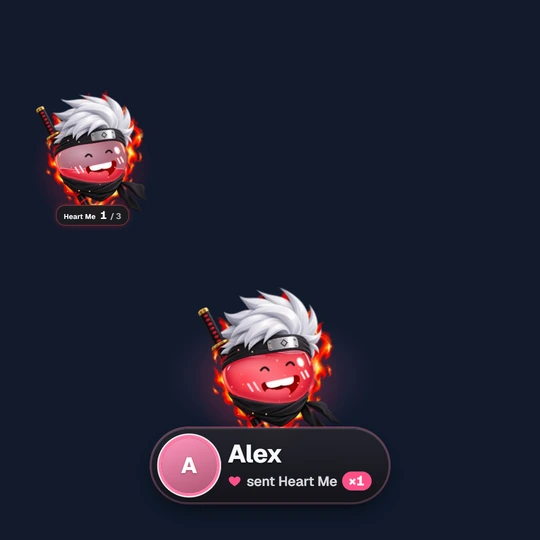
    • Home demonstrations use new high-resolution recordings of the actual Heart Me, alert and Connect Four effects.
    • Every demonstration and still preview fills the same frame, with consistent proportions and no black bars or enlarged low-resolution crops.
    • Home rotates through Heart Me, Motion alerts and Connect Four automatically, letting each demonstration finish before switching. Choose another preview whenever you like.
    • One silent preview plays at a time and stops when hidden or offscreen. Reduced-motion settings remain respected.
  109. Your sound hotkeys, even outside iTok.

    • iTok Desktop 0.1.28 lets assigned sound hotkeys work while another app is focused or iTok is minimized. Soundboard and My sounds include a switch to pause background hotkeys.
    • Shortcuts stay tied to your account and saved sound, warn about conflicts with other apps, and pause while you edit text or record a shortcut in iTok.
    • Hidden desktop previews pause their visual work while LIVE collection and sound hotkeys continue. Previews resume when you restore iTok.
    • Browser-only shortcuts continue to work while the browser is focused. Sounds play on this device; capture iTok audio in your streaming app for viewers to hear them.
  110. Drag your widgets. Give sounds a shortcut.

    • Drag every Browse widgets entry onto your canvas, including Heart Me styles, level-up celebrations and the scrolling gift bar.
    • Preview level 50 directly on your canvas, stay in HeartMe settings and return with Back to widgets. Level-up celebrations keep their full-canvas layout.
    • Assign an optional hotkey when adding a sound, or change it later in My sounds and Soundboard. Shortcuts stay attached to their sound when you search or sort.
    • Sound hotkeys work while iTok is focused, across Studio pages. They ignore typing, open dialogs and held keys, and warn if another sound already uses the shortcut.
  111. Easier Heart Me placement.

    • A Heart Me goal now has a selection box that fits the character and its text, with resize handles beside the widget instead of across an empty bar.
    • Drag the heart to move it, use the corner handles to resize, or use arrow keys for small adjustments. Existing positions, counts, targets and styles stay saved.
  112. Explore the new website and a better-fitting Home.

    • The public website now shows existing widgets, explains the visual editor workflow and keeps sample access separate from beta invitations.
    • The widget gallery starts with still pictures. A silent sample plays only when you press Play and stops when it leaves view.
    • The setup guide explains live-edit and auto-fit links, with clearer mobile layouts and the same beta request form.
    • Home keeps its scene and activity cards in the right column when the seasonal appearance is enabled, with a proportional scene thumbnail.
  113. A clearer Home and live-edit overlay links.

    • Home puts your LIVE connection, overlay status and next setup step first, with direct links to your tools.
    • Heart Me, Motion alerts and Connect Four share one preview stage. Choose a feature without opening competing videos.
    • Automatic Home previews rest after 20 seconds, stop offscreen or when hidden, and stay still for reduced motion until you press Play.
    • Your scene stays still on Home. Live counts and additional controls remain available in an expandable section.
    • Copy live-edit link in widget settings follows saved appearance, text, size and position. Fixed-design fitted links remain available with clearer setup guidance.
  114. Our company and contact details.

    • The website footer, Terms and Privacy pages now identify iTok Studio LLC as the company operating iTok.
    • The Terms and Privacy pages include a direct business email alongside the existing Beta hub contact option.
  115. Copy an overlay right from its card.

    • Widget cards, selected widget settings and jar designs now have a Copy link button for OBS and TikTok LIVE Studio.
    • Direct card links fit their source automatically and show the selected widget even when it is hidden in the main overlay. Copying keeps your main layout unchanged.
    • Copy separate Gift, Big Gift, Follow, Share, Super Fan, Join and Heart Me level-up alert links from the alert preview.
    • Copied links include source-size instructions and a manual-copy fallback. Sounds & TTS can be copied once for audio.
  116. Clearer battle wins and a steadier MVP list.

    • Battle win counters sit lower in the banner, with the same position during a series.
    • New battle setups use the featured MVP with ranks 2–4 beside it. Existing saved layouts stay selected, and Full top 10 remains available in MVP layout.
    • Delayed supporter updates no longer undo newer MVP totals, and reconnecting no longer briefly clears the current battle’s saved MVP list.
  117. Clearer HeartMe level-ups.

    • HeartMe level-up numbers have a solid fill and clearer edges, making them easier to read in Studio and on stream. Single-digit levels are more visible behind the character.
  118. TTS on your terms.

    • Turn moderator access on or off in Who can speak, alongside your other audience choices.
    • Start TTS directly in iTok without adding an overlay. One audio output plays at a time to prevent echo.
    • Cloud voices skip unreadable input, and chat no longer expands “til” into an unrelated phrase.
  119. A little more room for battle wins.

    • Battle overlay win counts sit a little lower for clearer spacing.
  120. Find HeartMe in Browse widgets.

    • HeartMe now has its own category in Browse widgets.
    • Choose HeartMe styles or Level-up animations, with both together in the HeartMe settings.
    • Your saved characters, goals and level-up settings stay in place.
  121. Sound alerts, easier to scan.

    • Saved sound alerts have clearer rows with the event or gift, assigned sound, volume and direct Play and Edit controls.
    • Sound status, live audio warnings and paused Actions are easier to see together.
    • Set up a sound in two clear steps, with more readable gift and sound pickers on smaller screens.
  122. Add a sound. Choose what plays it.

    • Sound alerts starts with Add sound and your saved assignments. Choose Gift or another event, then pick a sound.
    • Search gifts by name with one entry per gift. New gift assignments cover the catalog’s associated gift versions without making you choose IDs.
    • Use Play to preview a selected or saved sound on this device. Nothing plays automatically while you browse.
    • Big gifts is removed from new setup choices. Existing coin-threshold assignments keep their settings and show the exact threshold.
  123. Sound alerts, without the extra steps.

    • Sounds opens directly to Sound alerts. Choose an event or specific gift, pick a categorized sound, and save the assignment.
    • The sound picker shows the library immediately. Existing Actions can add or change a sound while preserving their other responses.
    • Live Studio is under Live, TTS & Voice is under Actions & Sounds, and Games follows that group.
    • Heart Me has its own section inside Alerts. Separate Heart Me and Goals & timers sidebar entries are removed; saved widgets and settings remain available in Live Studio.
  124. Find the right sound, right where you need it.

    • Browse sound categories and search within them, preview locally, or choose Saved and Upload from one sound picker.
    • Choose a sound directly for gifts, big gifts, follows, shares, subscriptions, likes, joins and chat. Existing volume, cooldown and playback settings stay intact.
    • Actions use the same sound picker, including gift rules and combined responses. Your action stays a draft until you save it.
    • Welcome sounds, assignment drafts and countdown responses also open the shared picker. Browsing and Preview do not trigger an alert or unmute your stream.
  125. Clearer battle results. Easier LIVE connection.

    • Set MVP display time directly in battle controls or the widget settings. New settings use 8 seconds; existing saved times stay as you chose them.
    • Viewers marked private or anonymous by TikTok are left out of battle MVP results, recaps and MVP announcements. If nobody is eligible, the MVP stays hidden.
    • Battle overlays show plain WIN ×N counts, including a reported zero. Three- and four-way points use a compact horizontal strip with short totals such as 12.8K; Studio keeps the exact points.
    • Choose Connect automatically when iTok opens for your saved TikTok username. Disconnect remembers your choice on this device, and another active window keeps its connection.
    • Automatic startup applies extra checks to incoming activity. Manual Connect remains available when needed.
  126. More places in the invited beta.

    • The invited beta now has room for 40 creators.
    • Existing invitations keep their expiry. Standard invitations still last 30 days, with no billing change or added owner access.
  127. Heart Me has its own place.

    The updated Shadow Ninja, Golden Knight and Cyber Bunny react to gifts with smooth hair, wing and ear movement.

    Heart Me

    Distinct character reactions and six celebrations for confirmed new levels.

    Reduced motion · select Play for a silent preview

    • Open Heart Me directly to choose a character, set its target and manage existing Heart Me goals. Ordinary Goals has its own section.
    • Larger widget previews, readable labels and separate Likes, Goals and Heart Me categories make widgets easier to find.
    • Widget settings open directly with Settings, Style, Text and Position tabs. One Add or Remove button controls visibility; removing keeps your settings.
    • Hover or focus previews a look. Saved widgets, positions and the choice between Live edits and Preview mode are preserved.
  128. Previous editor layout restored.

    The updated Shadow Ninja, Golden Knight and Cyber Bunny react to gifts with smooth hair, wing and ear movement.

    Heart Me

    Distinct character reactions and six celebrations for confirmed new levels.

    Reduced motion · select Play for a silent preview
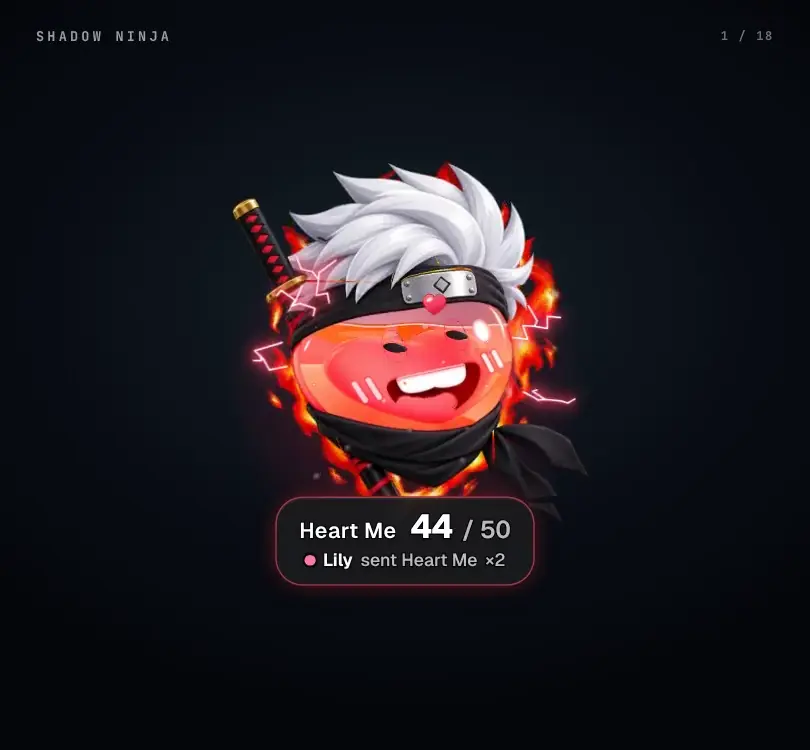
    • Live Studio returns to the previous canvas layout and widget settings arrangement.
    • Panel width, individual overlay links and the earlier stream fixes remain available.
  129. Your overlay settings, in clear view.

    The updated Shadow Ninja, Golden Knight and Cyber Bunny react to gifts with smooth hair, wing and ear movement.

    Heart Me

    Distinct character reactions and six celebrations for confirmed new levels.

    Reduced motion · select Play for a silent preview

    • Portrait editing now keeps the canvas on the left and gives the settings panel the available space. Landscape keeps a wider preview, and your saved panel width still works.
    • Select a widget to find Themes, Settings, Text and Position directly. Titles, captions and text styling have their own section instead of being buried under More settings.
    • Theme choices appear first where available. Choosing a theme updates the selected widget; browsing sections does not add a hidden widget or change your saved settings.
    • Alert tests clearly distinguish local canvas samples from tests sent to your linked stream. Unrelated widgets no longer show those alert test buttons.
  130. More room to build your stream.

    The updated Shadow Ninja, Golden Knight and Cyber Bunny react to gifts with smooth hair, wing and ear movement.

    Heart Me

    Distinct character reactions and six celebrations for confirmed new levels.

    Reduced motion · select Play for a silent preview

    • Live Studio gives settings a wider panel, with a Panel width control that remembers your preference on this device. The canvas stays beside it and your overlay positions stay unchanged.
    • The Lucky Wheel keeps other choices readable after landing, and its theme preview takes less space so settings are easier to reach.
    • Source links now offers individual widget and animation sources. They follow your saved positions and visibility, in vertical, horizontal or auto-fit format.
    • Individual picture sources are silent. When using them without the full overlay, add the separate Sounds & TTS source once for coordinated audio with a transparent picture.
  131. A full-size Connect Four menu.

    The updated Shadow Ninja, Golden Knight and Cyber Bunny react to gifts with smooth hair, wing and ear movement.

    Heart Me

    Distinct character reactions and six celebrations for confirmed new levels.

    Reduced motion · select Play for a silent preview

    • Connect Four Home now uses a desktop layout with larger game-mode cards, a clear resume button and one set of menu tools.
    • Open the leaderboard, player records, power lab, last result and sound controls without navigating a shrunken portrait menu.
    • The menu adapts to smaller windows, keeps every action reachable and respects keyboard navigation and reduced-motion settings.
    • The Connect Four logo stays inside its sidebar instead of overlapping the page heading. Your saved match and game settings stay unchanged.
  132. The Lucky Wheel, arcade style.

    The updated Shadow Ninja, Golden Knight and Cyber Bunny react to gifts with smooth hair, wing and ear movement.

    Heart Me

    Distinct character reactions and six celebrations for confirmed new levels.

    Reduced motion · select Play for a silent preview

    • The Lucky Wheel is now an arcade slot reel. The iTok WHEEL logo lights up, the reel rolls to the saved result, and a neon plaque shows the prize and who won it.
    • Spin duration sets how long the reel rolls. The logo intro, landing and result add about 10 seconds, and the next spin, including a queued chat spin, waits until the result has been shown.
    • Preview spins in the editor read TEST SPIN and never name anyone. Classic, Graphite and Daylight are still under Wheel theme, and wheels already set to one of them keep it.
    • A wheel still at its original default spot moves to the reel's centered spot. Positions you chose stay where they are.
  133. A free English voice, on your device.

    The updated Shadow Ninja, Golden Knight and Cyber Bunny react to gifts with smooth hair, wing and ear movement.

    Heart Me

    Distinct character reactions and six celebrations for confirmed new levels.

    Reduced motion · select Play for a silent preview

    • Find Phonon in TTS & voices → Free voices. Preview it, then choose Use voice to make it the default. English speech runs on your device with no voice credits or API key.
    • The voice downloads about 65 MB once in each browser that plays it. Prepare it before your show, and refresh an older stream source when convenient. Existing device and paid voices remain available.
    • Your saved personal voice assignments stay unchanged. The free default uses the same TTS queue, mute controls and playback history.
  134. Giftathon waits for you.

    The updated Shadow Ninja, Golden Knight and Cyber Bunny react to gifts with smooth hair, wing and ear movement.

    Heart Me

    Distinct character reactions and six celebrations for confirmed new levels.

    Reduced motion · select Play for a silent preview

    • Restart resets Giftathon to your chosen duration and leaves it ready. Press Start timer when you want the countdown to begin.
    • Reopening Studio pauses a saved running Giftathon at its remaining time until you choose Resume. A second window still follows the active host's timer.
    • Set coins, follows, shares and Super Fans per second. For example, 10 coins per second makes 10 coins add one second. Existing saved rates keep the same effect; 0 turns an event off.
    • Heart Me level-ups no longer get skipped when the connection adjusts its clock between two fresh level updates. Old and duplicate levels still stay quiet.
  135. Clearer shared overlay positions.

    The updated Shadow Ninja, Golden Knight and Cyber Bunny react to gifts with smooth hair, wing and ear movement.

    Heart Me

    Distinct character reactions and six celebrations for confirmed new levels.

    Reduced motion · select Play for a silent preview

    • Shared position previews keep widget names inside the map. Expand All positions to read every name and its saved position and size.
    • Select a name to highlight its point on the map. Previewing a position keeps your own layout unchanged until you choose Use these positions.
  136. Smoother Heart Me character reactions.

    The updated Shadow Ninja, Golden Knight and Cyber Bunny react to gifts with smooth hair, wing and ear movement.

    Heart Me

    Distinct character reactions and six celebrations for confirmed new levels.

    Reduced motion · select Play for a silent preview

    • Heart Me characters have cleaner faces and liquid fills, with softer movement for hair, wings, ears and fabric.
    • Gift sender popups use the refreshed characters while keeping the name, photo and gift count visible before fading away.
    • Online Connect Four now keeps the first fresh chat command after you turn on reading or return to the window, while ignoring old commands.
  137. Recover previews and see available powers.

    Shadow Ninja, Golden Knight and Cyber Bunny react to gifts and complete their Heart Me goals.

    Heart Me

    Distinct character reactions and six celebrations for confirmed new levels.

    Reduced motion · select Play for a silent preview

    • Retry an artwork preview that could not load without uploading it again or changing its saved placement.
    • Online Connect Four now explains when a power needs your turn, a connection, or one of your own discs. Unavailable powers stay disabled until you can use them.
  138. Stay in control of artwork uploads.

    Shadow Ninja, Golden Knight and Cyber Bunny react to gifts and complete their Heart Me goals.

    Heart Me

    Distinct character reactions and six celebrations for confirmed new levels.

    Reduced motion · select Play for a silent preview

    • Cancel a slow artwork upload or choose another file without getting stuck. Your latest artwork choice stays selected.
    • If an upload takes too long, Studio restores the controls and shows where to check for a file that may already be saved.
    • The Full canvas button now has a matching name for keyboard and voice navigation.
  139. Mute audio without hiding your actions.

    Shadow Ninja, Golden Knight and Cyber Bunny react to gifts and complete their Heart Me goals.

    Heart Me

    Distinct character reactions and six celebrations for confirmed new levels.

    Reduced motion · select Play for a silent preview

    • Battle and countdown Actions keep their on-screen messages and animations visible when audio is muted.
    • Muted Actions no longer queue a sound or spoken response that could play after you unmute.
  140. Keep the first gift in view.

    Shadow Ninja, Golden Knight and Cyber Bunny react to gifts and complete their Heart Me goals.

    Heart Me

    Distinct character reactions and six celebrations for confirmed new levels.

    Reduced motion · select Play for a silent preview

    • Gift alerts now keep the first new gift when it arrives together with LIVE room confirmation.
    • Refreshing, changing accounts or showing a hidden stream source still skips old alerts instead of replaying them.
  141. Add widgets with a clear next step.

    Shadow Ninja, Golden Knight and Cyber Bunny react to gifts and complete their Heart Me goals.

    Heart Me

    Distinct character reactions and six celebrations for confirmed new levels.

    Reduced motion · select Play for a silent preview

    • Hidden widgets now show an Add to overlay button at the top of their settings, with a clear status after adding.
    • View-only Studio windows explain why editing is unavailable and point to the existing window-switch control.
    • Invited beta creators can preview Standard voices without an incorrect access error.
  142. Find your Heart Me characters. Keep your game connected.

    Shadow Ninja, Golden Knight and Cyber Bunny react to gifts and complete their Heart Me goals.

    Heart Me

    Distinct character reactions and six celebrations for confirmed new levels.

    Reduced motion · select Play for a silent preview

    • Home now opens Heart Me characters directly. Choose a character for an existing goal, or explicitly add a Heart Me goal without replacing other goals.
    • Connect Four stream sources keep checking when the game starts later, and recover from temporary missing-source replies without replaying old celebrations or sounds.
    • LIVE chat readiness can recognize the creator from additional verified current-room identity messages while retaining account, room and freshness checks.
  143. Connect Four stays visible on stream.

    Shadow Ninja, Golden Knight and Cyber Bunny react to gifts and complete their Heart Me goals.

    Heart Me

    Distinct character reactions and six celebrations for confirmed new levels.

    Reduced motion · select Play for a silent preview

    • Fixed the Connect Four stream window collapsing into a tiny area at square, portrait and smaller output sizes.
    • The game keeps the full stream-window width while host controls, saved layouts and the 30-second timer stay unchanged.
  144. Reliable saves. Smoother editing.

    Shadow Ninja, Golden Knight and Cyber Bunny react to gifts and complete their Heart Me goals.

    Heart Me

    Distinct character reactions and six celebrations for confirmed new levels.

    Reduced motion · select Play for a silent preview

    • Studio rejects delayed saves from a previous editing window so they cannot replace newer overlay settings.
    • Clear and replace a Commercial script without the old text snapping back. Empty drafts cannot start playback.
    • Wheel and Chatbot aliases normalize after saving, without a false settings conflict keeping Start disabled.
  145. A simpler Connect Four power set.

    Shadow Ninja, Golden Knight and Cyber Bunny react to gifts and complete their Heart Me goals.

    Heart Me

    Distinct character reactions and six celebrations for confirmed new levels.

    Reduced motion · select Play for a silent preview

    • Removed Drop Piece and Shield from Connect Four's power-ups, gift choices and sound previews.
    • Extra Turn and Disc Shield remain available. Ordinary disc placement and the mandatory 30-second turn timer work as before.
    • Older matches keep their board and player records while retired power choices and their gift mappings are cleared.
  146. 30-second turns. Clearer Connect Four lettering.

    Shadow Ninja, Golden Knight and Cyber Bunny react to gifts and complete their Heart Me goals.

    Heart Me

    Distinct character reactions and six celebrations for confirmed new levels.

    Reduced motion · select Play for a silent preview

    • Connect Four now requires a 30-second timer for every turn, including local, computer, LIVE, tournament and online games.
    • Each new turn starts with 30 seconds. Match pauses and ready checks still work, and older timer settings migrate without resetting the board or player records.
    • Connect Four uses its original lettering without an added outline by default. Outlines you explicitly choose remain available.
  147. Clearer voice saves and action readiness.

    Shadow Ninja, Golden Knight and Cyber Bunny react to gifts and complete their Heart Me goals.

    Heart Me

    Distinct character reactions and six celebrations for confirmed new levels.

    Reduced motion · select Play for a silent preview

    • My voices shows separate saved counts for Standard and Premium, with the existing 30-voice limit for each collection.
    • Saving or choosing a voice checks the latest library before confirming success, so a full collection cannot silently skip the save or change its assignment.
    • Action previews warn when the Chat widget is hidden, so you can see why an overlay message would not appear on stream.
  148. Richer Connect Four screens. Consistent custom sizing.

    Shadow Ninja, Golden Knight and Cyber Bunny react to gifts and complete their Heart Me goals.

    Heart Me

    Distinct character reactions and six celebrations for confirmed new levels.

    Reduced motion · select Play for a silent preview

    • Connect Four restores the original sculpted leaderboard, player profiles, Home and full match result screen using your actual records and game state.
    • The illustrated guide shows your saved commands and gift mappings. Power Lab opens its separate sample board directly from Home.
    • Sound Kit lets you preview each current recording with the existing mute and volume controls. Game sounds take priority, and closing the kit cancels pending previews.
    • Gift mappings show their power artwork beside the gift and its settings, with clearer enabled and disabled states.
    • Full game windows use the correct shape for custom dimensions, including portrait. Stream setup includes 4:5, 9:8 and 3:4 shortcuts, while changes remain in preview until applied.
    • Selecting a widget does less style work while preserving the same lettering and artwork.
  149. Smoother resizing. Clearer preview controls.

    Shadow Ninja, Golden Knight and Cyber Bunny react to gifts and complete their Heart Me goals.

    Heart Me

    Distinct character reactions and six celebrations for confirmed new levels.

    Reduced motion · select Play for a silent preview

    • Resizing widgets keeps the artwork and handles stable, with less work during each drag. Undo, redo and cancelling retain their original positions.
    • Selecting a widget no longer rebuilds the unchanged canvas and widget library.
    • Heart Me level-up changes stay in Preview only until you choose Show on stream. Live edits still apply immediately.
    • Local animation previews and linked-stream tests are clearly separated. The level-up stream test names its level-50 celebration and uses the saved character.
    • Alert settings no longer say Saved automatically while changes are only in preview. Timing help explains how level-ups take priority and ordinary alerts resume.
    • Commercial voice scripts use the complete accepted text, including endings beyond 300 characters. Ordinary chat and preview limits are unchanged.
  150. Faster level-ups. Clearer previews.

    Shadow Ninja, Golden Knight and Cyber Bunny react to gifts and complete their Heart Me goals.

    Heart Me

    Distinct character reactions and six celebrations for confirmed new levels.

    Reduced motion · select Play for a silent preview

    • Fresh Heart Me level-ups appear without waiting behind ordinary gift alerts. Interrupted gift cards keep their remaining display time without replaying their sound.
    • Level-up artwork uses its original full portrait composition and transparent background, with matching placement in the editor and stream output.
    • Gift cards clear when an updated event becomes private, including while another animation is showing.
    • Moving widgets no longer dims every other widget, keeping busy canvases more responsive.
    • Feature examples play inline without a video timebar or a Play cover over waiting artwork. Pause and reduced-motion controls remain available.
  151. Automatic previews. Clearer level-ups.

    Shadow Ninja, Golden Knight and Cyber Bunny react to gifts and complete their Heart Me goals.

    Heart Me

    Distinct character reactions and six celebrations for confirmed new levels.

    Reduced motion · select Play for a silent preview

    • New in iTok and update previews start automatically while visible, then cycle through the examples without a Play click.
    • Previews stay silent, with one playing at a time. Pause whenever you like; hidden and offscreen previews stop.
    • Your preview-pause and reduced-motion preferences are respected. You can still choose and play an example yourself.
    • Heart Me level-ups keep the stream visible behind the animation, including the crowned level-50 celebration.
    • A checkerboard in the local level-up preview makes its transparent background clear.
  152. Your overlay and Connect Four, side by side.

    Shadow Ninja, Golden Knight and Cyber Bunny react to gifts and complete their Heart Me goals.

    Heart Me

    Distinct character reactions and six celebrations for confirmed new levels.

    Reduced motion · select Play for a silent preview

    • Expand Connect Four inside Live Studio with your overlay on the left and game controls on the right. The same match stays open.
    • Change the game’s stream format directly beside the preview, without leaving the editor.
    • A larger host Ready button and clear confirmation make it easier to see when you’re ready to play.
    • Power-ups show clearer availability and brighter action buttons. Board columns 1–7 are easier to read.
    • Fresh round wins now show the original crown-and-coins celebration after the last piece lands, with a static reduced-motion version.
  153. More than one voice for each person.

    Shadow Ninja, Golden Knight and Cyber Bunny react to gifts and complete their Heart Me goals.

    Heart Me

    Distinct character reactions and six celebrations for confirmed new levels.

    Reduced motion · select Play for a silent preview

    • Choose Random voices when assigning a voice to a person, then save between two and eight voices for them.
    • Each new eligible message uses one of that person’s selected voices. Retrying the same message keeps its chosen voice.
    • Mix available Standard and Premium voices, with each voice’s usual credit rate shown in your selected list.
    • Tap any saved voice to use it for new messages, or tap Random to rotate again. Your saved list stays available.
    • Existing single-voice assignments stay the same, and you can still return to your stream default.
  154. See who sent Heart Me.

    Shadow Ninja, Golden Knight and Cyber Bunny react to gifts and complete their Heart Me goals.

    Heart Me

    Distinct character reactions and six celebrations for confirmed new levels.

    Reduced motion · select Play for a silent preview

    • A new Heart Me gift shows a readable sender name and profile photo, then the whole cue fades away.
    • The old tiny sender line no longer stays underneath the goal. Your goal progress and character remain in place.
    • Repeated gifts from one sender combine briefly; different senders queue in order. Anonymous gifts keep their name and photo private.
    • Loading, restoring, resetting or showing a previously hidden overlay never replays an old sender cue. Reduced motion uses a gentle fade.
  155. Faster gifts. Steadier placement.

    Shadow Ninja, Golden Knight and Cyber Bunny react to gifts and complete their Heart Me goals.

    Heart Me

    Distinct character reactions and six celebrations for confirmed new levels.

    Reduced motion · select Play for a silent preview

    • New gifts and voice messages reach the stream output sooner after Studio receives them.
    • Moving widgets around the battle no longer stacks temporary spacing on top of the drag position.
    • Top Gift keeps its artwork frame size when a native animation reloads or recovers from a loading failure.
    • Heart Me level-ups show the person’s profile photo beside their name in the same animated card, with an initial when a photo is unavailable.
  156. See what happened to a voice message.

    Shadow Ninja, Golden Knight and Cyber Bunny react to gifts and complete their Heart Me goals.

    Heart Me

    Distinct character reactions and six celebrations for confirmed new levels.

    Reduced motion · select Play for a silent preview

    • TTS now keeps a searchable message and playback history on this browser, including accepted, skipped, loading, played, expired and failed requests.
    • Inspect the selected voice and timing for each recorded message, or download the private diagnostic log when you need it.
    • Recent decisions distinguishes chat acceptance from actual playback reports instead of leaving every accepted message marked Queued.
    • History is separated by account and creator, keeps up to 500 messages for seven days, and can be cleared without touching your queue or settings.
    • The full overlay takes priority over standalone Connect Four audio, so the game cannot keep the speech output waiting for audio control.
  157. Connect Four, all together. An easier canvas.

    Shadow Ninja, Golden Knight and Cyber Bunny react to gifts and complete their Heart Me goals.

    Heart Me

    Distinct character reactions and six celebrations for confirmed new levels.

    Reduced motion · select Play for a silent preview

    • Connect Four now carries the same sculpted design through Home, settings, player records, tournaments, online rooms and the stream window.
    • Keep red and blue chips or choose Classic red and yellow. Square stays the default for new setups, with your saved format and game rules preserved.
    • Subtle disc landings, distinct power sounds and a fuller victory cue follow real game events, with sound and volume controls in Appearance & motion.
    • Widget settings put larger theme previews first. Hover to preview another look, then tap to select it immediately.
    • Moved widgets keep their new position when settings finish loading. Battle spacing no longer fights Top Gift placement in the editor; stream output keeps its spacing behavior.
    • Play preview continues through the featured Heart Me, Motion alert and Connect Four examples automatically.
    • Preview the battle MVP directly in Sample data, then return to the live-stage preview without changing your real battle.
  158. Heart Me comes to life. Every level gets its moment.

    Shadow Ninja, Golden Knight and Cyber Bunny react to gifts and complete their Heart Me goals.

    Heart Me

    Distinct character reactions and six celebrations for confirmed new levels.

    Reduced motion · select Play for a silent preview

    • All 18 Heart Me characters now have their own gift reactions and completion effects.
    • Hair, ears, wings and capes stay connected as they move, with cleaner crowns, planets and character edges.
    • Heart Me level-ups now build through six animated tiers, from Spark to the Crowned level-50 finale.
    • Choose the original heart or a character, preview every tier, and enable level-up celebrations in your Alerts settings.
  159. A new Connect Four look. Your stream’s highlights.

    Shadow Ninja Heart Me fills and reacts to a sample gift.

    Heart Me

    Choose a character and watch its gift response and completion.

    Reduced motion · select Play for a silent preview

    • Connect Four now uses the sculpted Sapphire board, player frames, power icons and spacious game layout.
    • Use red and blue chips or choose Classic red and yellow in Appearance & motion. Your saved game rules and progress stay in place.
    • Square is the default for new setups. Portrait, landscape and custom stream sizes fit the complete board without stretching the pieces.
    • Your existing game modes, controls, gift mappings, commands, records and online play remain connected.
    • Heart Me characters, Motion alerts and Connect Four now have visual previews in What’s new and a permanent New in iTok section on Home.
  160. Preview every Heart Me character. More room for widgets.

    • Heart Me characters now have visible preview cards. Hover a character or focus it with the keyboard to see its own animation.
    • Select a character to preview it, then choose Apply Heart Me style. Hovering never changes your saved goal.
    • Only one character preview animates at a time; offscreen, hidden and reduced-motion previews stay still.
    • The widget sidebar is wider on desktop and tablet, giving widget names, previews and settings more room to read.
  161. New Heart Me characters. Smoother canvas editing.

    • Choose from 18 animated Heart Me characters alongside Original gold in your goal’s Themes & style. Preview a character, then choose Apply Heart Me style.
    • Character goals use your real Heart Me count, with the original Design artwork, liquid fill, gift response and completion motion.
    • Your current Heart Me look, progress, targets, positions and other saved settings stay in place until you apply a character.
    • Full canvas now fits the complete 1080 × 1920 portrait preview inside the available work area.
    • Selecting or dragging an overlay keeps Full canvas open and its size steady, so the drop stays where you release it.
    • Gift Gallery now has Adjust gallery progress: find a gift, correct its count, mark it lit or unlit, or choose Use automatic.
    • Gallery corrections survive reloads for the current gallery period. Automatic individual progress can overtake a correction; no unknown supporter identity is invented.
  162. Your gold Heart Me, brought to life.

    • The Heart Me goal keeps its original gold crown and smiling heart, with the approved liquid, reflections, blinking and gentle motion.
    • Confirmed new Heart Me gifts animate into the goal and can show the public sender below the count.
    • A new gift reaching the goal earns one completion. Reopening an overlay, restoring progress or editing a target does not replay it.
    • Reduced motion, individual goal positions and saved appearance settings remain supported.
  163. Your Design editor, connected.

    • The editor follows the approved Claude Design layout, typography, floating toolbar and direct inspector.
    • Position, size, jar appearance and capacity are available beside the canvas. More settings keeps the full controls within reach.
    • Scene thumbnails reflect your own saved layouts. Lock placement while editing to avoid accidental moves.
    • The canvas keeps its size when draft controls appear and stays large on phones, with Full canvas available.
    • Your saved scenes, widget appearance and stream settings are preserved. No mock battle graphic is added.
    • Placement locks also follow individually positioned goals when selected from the widget library.
  164. Your Design editor, connected.

    • The editor follows the approved Claude Design layout, typography, floating toolbar and direct inspector.
    • Position, size, jar appearance and capacity are available beside the canvas. More settings keeps the full controls within reach.
    • Scene thumbnails reflect your own saved layouts. Lock placement while editing to avoid accidental moves.
    • The canvas keeps its size when draft controls appear and stays large on phones, with Full canvas available.
    • Your saved scenes, widget appearance and stream settings are preserved. No mock battle graphic is added.
  165. More room for your stream.

    • Live Studio now uses the approved canvas-first design, with a floating toolbar and a compact tool rail.
    • The canvas stays large while you select widgets and change their settings. Full canvas is one click away.
    • See your selected widget and alert appearance beside the canvas, with the existing content, appearance and layout controls.
    • Scenes, saving and source setup sit below your canvas. The design-only battle graphic is not part of this editor.
    • Your existing widgets, positions, saved scenes and stream settings are preserved.
  166. One consistent Motion design for alerts.

    • Alerts now use Claude Motion in the editor and on stream, including scenes saved with an older alert look.
    • The alert Appearance panel shows the active Motion design without the old theme choices.
    • Follow, Share, Gift, Super Fan, Big Gift and Legendary Gift keep their Claude artwork and effects.
    • Your alert text, colors, size, position and sound settings are preserved.
  167. New glass jars and glowing goals.

    • Choose Crystal Jar, Midnight Vault, Moon Potion, Halo Orb or Smoke Tumbler in Coin jar Appearance.
    • Claude jars use real gift pictures: a single Lion stays one large Lion, and coin capacity controls gift size.
    • Glass Heart is available for Like goals and Gift Ring for Gift goals in Themes & style.
    • The new looks keep their original glass, glow and smooth motion while using your received activity.
    • Your current styles, positions, targets and saved scenes stay in place until you choose a new look.
  168. Crystal Motion is ready to use.

    • The first Claude Design collection is now in widget themes as Crystal Motion · Claude v1.
    • Animated Follow, Share, Gift, Super Fan, Big Gift and Legendary Gift alerts use your real activity.
    • Matching looks are available for Stats, classic Goals, Giftathon, Top Gifters, Activity feed and Chat.
    • Choose the new look in a widget’s Appearance settings. Your current looks, positions and special goal designs stay saved.
    • Motion pauses in hidden previews and respects reduced-motion settings.
  169. New sounds for your alerts.

    • Facet, Spark, Soft and Tock now use original generated sound effects with clean, short endings.
    • Big gifts have a new crystal celebration sound, with levels balanced across all five presets.
    • Sounds preload quietly and reuse their audio; hiding an output or skipping a gift cancels pending playback.
    • Your custom uploads, mute switches, volume levels and gift-trigger settings stay as configured.
  170. Sounds without the long wait.

    • Soundboard and Actions show sounds as each library responds, without waiting for a slower source.
    • A slow or unavailable source no longer hides the sounds that have already loaded.
    • Stalled searches stop with a retry option, and changing categories cancels the previous request.
    • Saved sounds, volume settings and gift triggers stay as configured.
  171. Smoother Top Gift playback and turns.

    • Top Gift uses compact transparent playback across the current animated gift catalog, including regional versions.
    • The supporter-photo turn begins while the gift is still moving, without dissolving into a still image first.
    • Gift downloads use less server memory and keep bounded retry and cancellation behavior.
    • Your saved colors, text, placement and full-screen gift effects stay as configured.
    • More app controls can recover cancelled requests in older embedded browsers.
  172. More reliable Uni loading on stream.

    • Both Top Gift Universe animations use smaller transparent clips of the original animation.
    • Streaming sources load the clips in resumable chunks to recover from slow or interrupted downloads.
    • Your text, colors, positioning and supporter-photo turn stay as you set them.
  173. Smoother Universe playback.

    • Both Top Gift Universe animations use smaller transparent clips of the original animation.
    • Streaming sources load the clips in resumable chunks to recover from slow or interrupted downloads.
    • Your text, colors, positioning and supporter-photo turn stay as you set them.
  174. Universe animations on stream.

    • Top Gift plays both TikTok Universe versions as transparent video without needing the extra canvas renderer.
    • The original animation and supporter-photo turn are preserved, along with your saved colors, text and placement.
    • Gift animations can load in embedded browsers that do not support the newer request-cancellation API.
  175. More freedom to arrange your overlays.

    • Drag widgets freely without jumping to a grid when you let go. Snap to center is optional and off by default.
    • Fine-tune placement one pixel at a time with the arrow keys or movement buttons. Hold Shift for ten pixels.
    • Resize in smaller steps, with a wider size range and more room to position widgets beyond the canvas edges.
    • Your existing scenes, widget positions and Undo history work as before.
  176. Smoother gifts. More reliable playback.

    • Gift animations finish loading before playback, avoiding mid-animation buffering. Original clips are shared in a bounded cache for repeat playback.
    • Top Gift and Gift Gallery retry temporary loading failures instead of keeping a cached busy response.
    • Gallery repeats keep their player running, and newly lit gifts no longer restart neighbouring animations.
    • Automatic gallery paging waits for the current animations to finish. Still tiles keep their usual rotation.
  177. Consistent gift sizing in every gallery layout.

    • Gift pictures and their original animations now use the same centered display box and fitting rule in every layout, including Single tile.
    • Animation keeps its original proportions and fits inside the tile without the previous zoom-and-crop effect. Ready animations replace the still image.
  178. Spotlight one gallery gift at a time.

    • Single tile is a new Gift Gallery layout: one small tile rotates every 8 seconds, with its gift and available supporter photo and name.
    • Choose All gifts, Lit gifts or Not lit yet. The selected gifts keep their order from lowest to highest coin value, and the tile can be moved and resized in the overlay editor.
    • Ready gift animations now replace the still picture instead of playing over it. The picture remains the fallback while loading or if playback is unavailable.
  179. Gift Gallery shows who completed each gift.

    • Lit gifts show the completing viewer’s public name and profile photo in the lower strip, including locally counted completions. Missing profile photos are not invented.
    • The gallery is ordered by coin value from lowest to highest in every layout and filter. Gifts with an unknown coin value appear last.
    • Supporter details survive reloads in the same gallery period and respect Show supporter names. Private gifts and TikTok’s explicit privacy choices stay protected.
  180. Gift Gallery tiles light up and play.

    • Completed gifts light the individual dark tile with gold edging and a bronze supporter strip, matching the supplied Gift Gallery reference.
    • Lit tiles play available original gift animations silently. Unlit tiles stay dim and still. Use Animate lit gifts in Gallery settings to turn motion off.
    • Only visible tiles play, with two animations at a time. Original gift icons remain underneath transparent frames and when an animation is unavailable.
    • Individual-viewer progress keeps counting while the gallery or alerts are hidden, as long as iTok remains connected to LIVE.
  181. Gift Gallery lights up as targets are reached.

    • A gift lights up as soon as iTok counts its full target from one viewer, using the same full-color artwork and checkmark as the regular lit state.
    • Gifts keep counting while the gallery and alerts are hidden, as long as iTok stays connected to LIVE. Completed gifts stay lit across reloads in the same gallery period.
    • Completed targets no longer wait on Confirming. Local completions count in the Lit gifts filter without awarding TikTok titles or combining different viewers’ gifts.
  182. One voice across your iTok outputs.

    • iTok now coordinates audio between the app, browser playback and stream overlays to prevent the same TTS playing twice.
    • Extra outputs stay silent while another iTok output plays audio. Hidden, closed or disconnected outputs release playback safely.
    • Refresh iTok and existing overlay sources when convenient to load the updated audio protection. Your saved voices, volumes and layouts stay the same.
  183. Add Gift Gallery from Widgets.

    • Widgets now has a direct Add Gift Gallery button. It adds the gallery and opens its settings using your saved layout.
    • The Gift Gallery card in Library → Widgets also has Add to overlay. Existing galleries open for editing, and view-only windows cannot add a widget.
  184. Gift Gallery follows your LIVE.

    • Gift Gallery now tracks each viewer’s received gifts separately while your LIVE is connected. Different viewers cannot combine to fill one person’s target.
    • Progress updates in the library and overlay as gifts arrive. New progress stays marked as confirming until TikTok verifies the gallery status.
    • Incoming gifts schedule a fresh gallery check within the service’s allowed rate. Bursts and duplicate gifts do not flood checks or count twice.
    • Counts continue across reconnects and reloads for the same gallery period. A new period starts fresh. Private senders are not identified or assigned a title locally.
  185. Find sounds. Keep the voice you chose.

    • Discover sounds in Soundboard or My sounds, with Myinstants trending and recent clips plus Openverse sound effects. Search, categories, artwork and volume controls help you choose.
    • Save a clip to My sounds or set a quick gift trigger. Browse the same library when adding sound to an event or reusable action.
    • Sound results load in batches. Previews stay on your device, and creating a gift event does not play a test on your stream.
    • Assigned voices no longer silently switch to the default when unavailable. Selected cloud voices do not fall back to a device voice after a failed request.
    • Repeated submissions of the same speech event are ignored by the audio queue to prevent duplicate playback in one output.
    • An unavailable Gift Gallery keeps a selectable placeholder in the editor, with a visible remove control. Stalled gallery checks time out so you can retry.
  186. Your sounds, ready to tap

    • Sounds now has a Soundboard tab with large play pads, favorites, search, per-sound volume and a Stop control.
    • Use your existing saved sounds, or open Add or manage sounds to upload audio, find clips and export Stream Deck buttons.
    • Optional number keys 1–9 play the visible pads while the board is open. Typing in fields does not trigger sounds.
    • The board plays on your device. Capture iTok or browser audio in your streaming app for viewers to hear it.
  187. Clearer Mac access and music setup

    • Mac downloads now show their macOS requirement. The download page also explains how to open Studio in its own Safari window on macOS Sonoma or later.
    • Apple Music clearly says when iTok’s service setup is pending. Creators do not need their own developer account.
  188. A cleaner Standard voice library

    • Removed 51 voices without public samples and one unavailable voice from browsing and search.
    • Working versions with the same name stay available. Your saved voices and existing assignments are preserved.
  189. More Standard voice samples supported

    • Standard previews support both MP3 and WAV samples, including newer dated sample folders.
    • Saved previews remain local and free of generation credits. English starters and the new voice categories remain available.
  190. Find your next Standard voice

    • Fixed newer saved-preview locations, including Guyzo, while keeping samples local and free of generation credits.
    • Start with selected English-only voices with saved previews, including announcers, characters and familiar voices.
    • Browse Characters, Actors, Celebrities, Announcers and Narrators, or open All Standard voices to explore the full catalog.
    • Search, language filters and saved voice assignments stay separate. Preview each voice locally to check its delivery before choosing.
  191. Standard voice previews play again

    • Fixed Standard voice previews that showed “Couldn’t play this preview” even when the catalog had a working sample.
    • Saved samples play locally without generating speech, using credits or changing your assigned voices.
  192. MVP animation buttons stay paired

    • MVP animations are available in Actions, with media upload, placement, preview and stream playback controls.
    • Play and Stop exports reuse the same private Stream Deck connection after reopening the MVP section on this device.
  193. Your MVP animations in Actions

    • The new MVP animations section in Actions lets you upload or choose your media, name each animation, adjust its placement and fades, and save it as a reusable action.
    • Preview locally, play or stop the saved animation on your connected stream overlay, or export native Stream Deck play and stop buttons.
    • Each creator has a private animation library. MVP playback does not change battle scores or rankings, and stale button presses are not replayed when reconnecting.
  194. Enigma supporters in MVP rankings

    • Supporters confirmed as Enigma appear as Enigma in the MVP ranking, with their reported contribution and rank.
    • Their real name, account identity, photo and levels stay hidden. Other anonymous supporters keep the Anonymous supporter label.
  195. Battle bonus display removed

    • The double- and triple-points banner and its countdown are removed from battle overlays while their live timing is being verified.
    • Battle scores, results and MVP displays continue normally.
  196. More reliable scene transitions

    • Prism, Iris and Silk finish covering the canvas before recovering from a stalled transition.
    • Rapid scene changes settle on the latest requested scene, with safer handling of interrupted transitions.
  197. Clearer voice previews and camera framing

    • Voice previews show the selected voice’s artwork when available and a waveform that follows its audio. Previews play on this device without changing your stream’s voice settings.
    • Preview and Stop stay in the same place. Reduced-motion preferences keep the waveform still.
    • Show full camera fits and centers the entire camera image in the scene without changing the camera device, lighting or drag lock.
    • Add browser link is now visible beside Add widgets. It opens a local draft so you can set up the source before adding it.
    • The game shortcut is labeled Connect Four so it is clear which game it adds.
  198. Your camera, arranged per scene

    • Unlock the camera to drag it on the canvas, then lock it while editing your overlays.
    • Each scene saves its camera position, zoom, framing and drag lock. Camera devices, capture quality and exposure stay shared.
    • The editor backdrop is restored, with clear Add camera, Add overlays and Show on stream steps. The optional safe-area guide stays off by default.
    • Source setup explains how to select iTok Camera in OBS or TikTok LIVE Studio, or use a Browser source for overlays only.
  199. Separate goals and clearer game recovery

    • Add a goal and move or resize it independently. Existing goal layouts stay in place; choose Move this goal independently to separate a saved goal.
    • Independent goal positions are saved for portrait, landscape and each scene, with live movement and Undo.
    • The optional TikTok safe-area guide starts off. Shaded areas have no labels covering your canvas.
    • The camera preview and editor backgrounds use black in this release. Desktop camera output is updated separately.
    • Connect Four explains missing LIVE requirements beside the paused board. Resume opens the existing connection or chat setup instead of leaving the recovery message out of view.
    • New Game opens match setup for an empty paused board. Your saved board and queue remain intact until you choose a new match.
  200. Faster scene changes and placement

    • Scene transitions start over the live connection instead of waiting for the next saved-state poll.
    • Fast dragging sends updates up to 60 times per second, with less waiting at the start of a move.
    • Slow connections keep the newest placement without building a long queue of old positions.
    • Saved-scene links, your live activity and one-step Undo keep their existing behavior.
  201. Move your overlays live

    • With Live edits on, your stream follows while you drag or resize a widget in the overlay editor.
    • Canceling a move restores its previous position. Releasing keeps one saved change for Undo.
    • Preview edits stay local, and each scene and orientation keeps its own layout.
    • If the fast connection is interrupted, your saved overlay continues syncing normally.
  202. Living liquid goals and a new Pumpkin MVP layout

    • Choose Liquid glass for Like, Follow and Share goals, with flowing liquid and a completion effect tied to accepted LIVE activity.
    • Keep goals separate or combine them into one smoothly changing display. Customize each goal’s colors and text, plus the time between changes.
    • Choose Featured MVP + ranks 2–4 in Battle settings for the matching Pumpkin artwork and connected pull-down. Longer names fit within the frame and scores show as clear numbers.
    • Existing goal styles and the full top 10 remain available. Saved scenes keep their current choices.
  203. Matching music size. Clearer Top Gift lettering.

    • The overlay editor shows the chosen music player instead of a smaller placeholder. Its resize box follows the visible player in portrait and landscape.
    • Top Gift uses the chunky rounded lettering shown in the preview, with larger names and totals. Your chosen font, colors and text sizes keep priority.
    • Top Gift refits long names when you change text size or font.
    • The music positioning preview keeps the same player shape when no current song is available, including after old song data expires.
  204. Matching music size. Clearer Top Gift lettering.

    • The overlay editor shows the chosen music player instead of a smaller placeholder. Its resize box follows the visible player in portrait and landscape.
    • Top Gift uses the chunky rounded lettering shown in the preview, with larger names and totals. Your chosen font, colors and text sizes keep priority.
    • Top Gift refits long names when you change text size or font.
  205. Bolder, clearer alerts

    • Gift, follow, share, join, subscriber, like, chat and Heart Me level-up alerts use clearer rounded lettering by default.
    • Larger names, event labels and totals make alerts easier to read. Long names wrap within the card.
    • Your chosen fonts, colors, text sizes, outlines and shadows keep priority over the defaults.
  206. Hide gift effects during Mist and Enigma

    • Gift animations hide during confirmed Mist or Enigma, including an animation already playing. Hidden requests do not replay when concealment ends.
    • Enigma and anonymous gifts stay private. The earlier option to show their animations has been removed.
    • The optional final-seconds setting remains separate: allow gift animations throughout your chosen final window, such as the last 30 seconds.
  207. Choose when gift animations appear

    • In Gift animations → Gift triggers, optionally limit incoming gift animations to the final seconds of a battle. Start with 30 seconds or choose your own window.
    • Timed gift effects stop when the battle ends or disconnects. Earlier gifts do not build up for later playback, and manual plays and chat commands keep working.
    • A separate option shows Enigma and anonymous gift animations without revealing sender names, pictures, messages or spoken details.
    • Both options start off. Your saved settings keep their existing behavior until you choose to change them.
  208. Keep scene switching ready when a co-host leaves

    • A repeated co-host roster in an older message format now keeps the group information needed for the next departure.
    • Automatic scene switching can return to your chosen solo scene after that mixed-format sequence. Existing scene choices and manual controls are preserved.
  209. Gift sizing and action shortcuts

    • In Coin value mode, lower capacities use larger gifts and higher capacities use smaller gifts. The jar itself stays the same size.
    • Use the 50 coins preset or enter your own capacity. The pile fills at that value and keeps the exact received total.
    • Try different capacities and gifts in the sample preview without changing your live totals.
    • Right-click a saved action to rename it, edit its settings, duplicate it or create a linked event. Renaming keeps existing event links.
  210. Each scene gets its own overlay links

    • Open Scenes to copy a Portrait or Landscape link for any saved scene. Each link stays on that scene while you switch setups in iTok.
    • New general links match the editor’s orientation. Set the source to the displayed dimensions; Auto-fit is still available when you choose it.
    • The Most Likes crown sits above the first-place picture, leaving the whole face visible.
    • Gift jars show only the jar and gifts by default. Turn on Show text on jar to add a heading, value, progress or bottom message.
  211. Clearer hearts, likes and gift jars

    • Heart Me shows its liquid fill and exact count without a percentage. The heart floats gently while its text stays still.
    • Most Likes restores the leader’s crown, keeps the top-three medals and removes the extra Top N label.
    • Choose separate heading, name, number and heart colors, a two-color gradient or rainbow text. Like counts respond with subtle motion.
    • Coin Jar can fill by received coin value with a custom capacity, show the jar’s exact value and preview different gifts locally.
  212. Set how many coins fill your gift jar

    • Choose Coin value in the jar settings and set Coins to fill jar. The pile now follows the received coin value, not just the number of gifts.
    • Jar value shows the exact received total, even after the jar fills. Existing jars keep their saved gift-count mode until you change it.
    • Try Roses, Finger Hearts, Doughnuts and Galaxies in the local sample preview without sending gifts to your stream.
  213. Reliable browser TTS controls

    • Stopping browser TTS stays stopped even if an older connection request finishes later.
    • Play LIVE chat on your phone from TTS → Start audio. Keep the page open and your phone unlocked.
  214. Listen to TTS from your phone

    • Open TTS and tap Start audio to hear your LIVE chat directly in your phone or computer browser.
    • Choose Keep screen awake for longer sessions. Keep this page open; Resume audio brings it back after the browser pauses it.
    • Your selected voices, audience rules and credit balance work as usual. Starting audio does not open another LIVE connection.
  215. More room in your gift jar

    • Smaller gift pictures build a lower pile, so 72 Roses no longer fill the jar.
    • The visible pile keeps growing beyond 72 gifts, with a bounded limit to keep the animation lightweight.
    • Your gift totals, jar style and saved settings stay the same.
  216. Gifts settle into a real pile

    • Roses and other gifts now collide, tumble and stack instead of freezing while they overlap.
    • The jar stops animating once its gifts settle. New gifts land on the existing pile.
    • Gift pictures are cropped to their visible artwork for clearer stacking. Your jar style, totals and saved settings stay the same.
  217. Make your top tappers stand out

    • Most Likes now has a clear heading on transparent layouts, with gold, silver and bronze medals beside the top three profile pictures.
    • Medals follow the current ranking as likes arrive. Viewer identities, photos and received totals stay the same.
    • Edit the heading or turn the heading and medals off separately in the widget settings.
  218. Gift pictures in your jar

    • Coin Jar now shows the gift pictures received during your LIVE instead of decorative coins. Missing artwork uses a gift symbol.
    • The pile displays up to 72 gift pictures. Coin totals, targets and top-gifter rankings still use your real received values.
    • Empty jar clears its pictures without changing your totals. Reopening or reconnecting restores the pile without replaying old drops.
    • Try sample Roses in the settings. Your saved Crystal jar, Midnight vault and Moon potion designs are preserved.
  219. Connect your LIVE when Studio opens

    • An offline Studio now offers the TikTok LIVE connection popup for returning creators as well as first-time users, with the saved username ready.
    • The popup stays on your current page, waits for other dialogs, and does not interrupt an active or connecting LIVE.
    • Closing the popup keeps it dismissed for that window session. Opening it never makes an extra connection request.
  220. Connect OBS from Studio

    • Windows desktop 0.1.26 adds Connect OBS in Live Studio → Camera. It uses your existing local OBS connection settings, with manual setup available.
    • Test the connection, see your OBS scenes, and switch scenes with a separate button. Connecting or selecting a name does not change your live picture.
    • The desktop update also supplies confirmed Spotify Playing, Paused and Muted status. Your microphone mute is separate.
    • This connection does not enable automatic camera zoom or change your saved overlays. Those controls stay as you set them.
  221. Simple controls for your saved events

    • Pause or resume the saved event list with one switch above Your events. Each event keeps its individual on/off choice.
    • Switch a saved event on or off directly from its row. Changes apply immediately without saving unrelated edits in the editor.
    • Events received while paused never replay on resume and do not start new cooldowns. Existing cooldowns still apply.
    • Local event previews remain available while the saved event list is paused.
  222. Battle triggers and steadier music artwork

    • Run your chosen actions at battle start, battle end, near the end, during confirmed double or triple points, or when a glove is reported.
    • Near-end timing is adjustable. Each trigger can run multiple actions, with local previews and protection against replayed battle events.
    • The first-gift trigger means each viewer’s first gift in this LIVE. Its gift and coin filters stay visible while editing.
    • Music keeps the current cover visible while the next artwork loads. Switching music sources clears the previous source immediately.
    • Compatible music connections can keep paused tracks visible and show Playing, Paused or confirmed Muted status. Older desktop readers need an update before they can report pause and mute.
  223. Spotify queues and media placement

    • Connect Spotify queue permissions from Song requests, then choose the exact track for an approved request and add it to your active Spotify player. Spotify Premium and app access are required.
    • Queued in Spotify is separate from Playing. Unconfirmed deliveries are checked before another attempt to prevent duplicate songs.
    • Image and video actions have Place & preview: drag or resize in portrait or landscape, set opacity and fades, then save the action.
    • Placement previews are local and silent. Older actions keep their existing placement and appearance.
  224. Your current song and album cover

    • Album covers supplied by the desktop update can load in stream overlays without a Studio sign-in cookie.
    • The Music page shows the current selected song and its real album cover instead of a sample track.
    • Artwork uploads stay limited to signed-in, active creators. The stream receives only the small cover image.
  225. Camera preview recovery

    • Studio checks whether its video preview is still receiving frames, even when the connection appears open.
    • A stalled video preview reconnects without restarting the camera capture. Repeated failures stop after three retries and show a reconnect message.
    • Leaving the page or hiding the window cancels preview retries. The separate camera output and saved settings are preserved.
  226. Music sizing, square games and action names

    • Player size is beside the music settings and in the Music page. Resize the record and card together without changing their position.
    • New Connect Four layouts start in Square format. Existing saved formats and custom sizes are kept.
    • Updated desktop music readers can supply the current song’s cover automatically. This requires the desktop artwork update; older readers still show the placeholder.
    • Each saved action has a visible Rename button. Renaming keeps its responses and linked events intact.
  227. Start song requests in one step

    • Press Start requests in Music to enable the queue and listen to your connected LIVE. No separate enable-and-save step is required.
    • Your saved command, access rules and approval settings are kept. The request panel shows the command viewers should type.
    • Pausing requests stops new entries without clearing the queue. Requests never start music automatically.
  228. Resume your Connect Four match after an update

    • Resume reconnects game chat to your confirmed LIVE after a refresh, while keeping the board, players and queue.
    • If the connection, account or timing is not ready, the match stays paused and explains what needs attention.
    • Opening or refreshing Connect Four still waits for your choice before reading chat. Practice games can resume without LIVE.
  229. Clearer Connect Four instructions and access

    • Join, ready and turn instructions appear in a large bold callout above the board. Active power instructions are larger too.
    • Players & access shows You vs a viewer and Two viewers beside the local play options.
    • Choosing an access rule applies it immediately to new joins, with the current rule shown clearly. Existing players finish the current round.
  230. Keep Connect Four in its own workspace

    • The Connect Four sidebar shortcut opens the game instead of sending you to the overlay editor.
    • Click Connect Four again while playing to open its settings in place. Your board, queue and chat connection keep running.
    • The overlay editor keeps its separate Open Connect Four control beside the canvas.
  231. Steadier MVP profile pictures

    • MVP profile pictures stay visible while TikTok refreshes their image links or a replacement takes time to load.
    • The overlay and Battles page keep each photo tied to its supporter as scores and ranks update.
  232. Larger Heart Me goal text

    • Select your liquid Heart Me goal to change Text size directly in Goal settings or preview it in Themes & style.
    • Use the slider or quick 100%, 125%, 150% and 200% sizes. The title, counts and completion message grow while the heart keeps its size.
    • Text size saves with that goal, preserving other goals, colors, progress and widget placement.
  233. Play Connect Four across your streams

    • Find creators who have chosen to accept invitations, or share a temporary four-digit code. Existing private links still work.
    • Choose host versus host, chat versus chat, or one host against the other creator’s chat. Both players confirm the rules before the match starts.
    • Chat can vote on a column for five seconds, or use the first eligible command. Each side reads its own connected LIVE and uses its creator’s game access rules.
    • Agree on power-ups before playing. Creators can use the shared powers on their own turns, with instructions beside the board.
    • Creator profile pictures appear in invitations, player cards and the stream view. Existing matches pick up a missing picture when one becomes available.
    • Reconnects and clock corrections preserve the board, discard old-turn commands and recover chat reading without reusing an old connection.
  234. Clearer Connect Four powers and controls

    • iTok Studio Connect Four is the name in the editor and stream output.
    • Shuffle shows the pieces lifting and settling into their new squares. Swap Colors shows the players trading their colored tokens.
    • Power instructions appear above the board with the next step and any host choice buttons, even when side controls are hidden.
    • The host can press I’m ready directly below their name. Viewers still confirm separately with the saved chat command.
    • Moving a game layer follows the pointer smoothly. Alignment and grid snapping happen when you release it.
    • Full-window stream output can show optional Rankings, Player records and Tournament pages. Turn them on in the game’s stream settings.
    • Ready-up and restart timers keep their remaining time while the game is paused or LIVE disconnects.
    • LIVE moves wait for the connection, delayed commands cannot become a new turn, and current Heart Me status takes priority over an old badge.
  235. Connect Four fits your stream

    • Stream format is easier to find from the game. Choose TikTok portrait, landscape, square or a custom size.
    • The game layer has linked pixel width and height controls. Hide the gift panel or command reference when you want a more compact board.
    • After the final disc lands, the result names the winner with their profile picture. Draws and no-contest rounds have their own result.
    • The turn label uses readable light text, and a confirmed result stays visible if the stream connection goes stale.
  236. You control failed LIVE connection retries

    • Opening Studio makes one initial connection attempt. If it fails or you’re not live yet, it stops and offers Try again instead of repeating requests.
    • A silent initial connection stops within 45 seconds. Returning to a tab does not restart a failed attempt.
    • A working LIVE keeps automatic recovery after a temporary disconnect, with service retry limits respected.
  237. LIVE connection retries stop after five minutes

    • If LIVE never connects, iTok stops automatic attempts after five minutes and shows Try again. Returning to the tab does not restart attempts.
    • A working LIVE keeps its existing connection recovery. An exhausted service allowance never triggers requests before its retry time.
  238. Fewer repeated connection attempts

    • Repeated failed startup connections slow down and stop after three hours. Press Connect to try again; returning to a tab no longer skips that slower wait.
    • An already-established LIVE keeps its automatic recovery behavior, and service limits still respect their retry time.
    • Connect Four explains when chat commands are waiting for LIVE to reconnect or start, while preserving the current board and queue.
  239. Clearer LIVE retries and three gift jars

    • When the LIVE service reaches its connection allowance, iTok explains the limit, shows the next automatic attempt and waits before trying again.
    • Add a Coin jar from Live Studio’s Gifts & alerts: choose Crystal jar, Midnight vault or Moon potion, with a transparent background and animated incoming coins.
    • Customize jar colors, labels, target and optional top gifters. Browse before adding; emptying the jar only clears its display.
  240. Clearer text and layer visibility

    • Gift & text builder can fit longer text inside its box and shows its current size. Turn fitting off to keep a fixed font size.
    • Clipped text, off-canvas layers and zero opacity now show clear recovery hints. Attached text explains when its gift is hidden.
    • Check your design on transparent, dark or light preview backgrounds. These backgrounds stay out of your stream output.
  241. Build your own gift overlays

    • Open Gift & text builder from the Live Studio widget list. Arrange gift artwork and editable text on your own canvas.
    • Attach text to a gift, select several layers, align or space them, and use snapping or precise position, size and rotation controls.
    • Add optional Float, Pulse, Rock or Spin motion to each gift. Attached text stays readable, and motion respects reduced-motion settings.
    • Duplicate, hide or lock layers, undo edits, and save reusable designs to My overlays. Browse and edit before choosing Add to overlay.
  242. Preview widgets before adding them

    • Click a widget to inspect its preview and settings. Add to overlay stays visible at the top when you are ready.
    • Edits to a hidden widget stay in the preview until you add it. Browsing a different notice style does not replace your current notice.
    • Drag to place and Hidden → Restore remain direct ways to add a widget.
    • Pumpkin Glow is the only selectable Battle style while new frame designs are being prepared. Existing saved looks are preserved until you choose a different look.
  243. Sidebar and Pumpkin Glow

    • The sidebar again separates LIVE, Games, Actions & Sounds, and Account.
    • Actions comes first in Actions & Sounds. Live Studio, goals, sounds, stream extras and Library stay directly available in that section.
    • More tools expands inside the sidebar instead of covering the page. Plans & credits, Discord and Update history stay easy to reach.
    • Pumpkin Glow has a named preview card in Battle themes and appears when you search Pumpkin or Halloween.
    • Battles → Settings → Display includes Use Pumpkin Glow to restore the original Halloween frame while keeping your scores, colors and placement.
  244. Clearer widget choices and navigation

    • The main sidebar has colored categories again. Actions comes first under Actions & Sounds.
    • Stream notice previews show a fixed message. Scrolling gift bar previews show the moving row. Switching modes keeps your saved text, gifts and placement.
    • Theme pickers show distinct choices for each widget. Existing saved looks remain available as the current selection.
    • Choosing Pumpkin Glow for Battle restores its original frame. Native Heart Me and styled Like goals keep readable text when other widgets use a light theme.
    • Viewers opens with followers and Heart Me members. Choose Everyone to see the full saved list.
    • Standard voices open with popular English voices. Search and the language filter let you explore the wider library.
    • Battles keeps match controls beside your preview, with separate tabs for power-ups, modes, settings and schedules.
  245. Popular English voices first

    • Standard voices open with English voices ordered by popularity.
    • Use the language filter beside search to explore all languages or choose a specific language.
    • Your saved voices, selected voice and credit costs stay the same.
  246. Original Battle theme restored

    • Battle defaults to the original Pumpkin Glow Halloween design instead of inheriting another overlay’s theme.
    • Pumpkin Glow is also available directly in Battle’s theme picker.
    • Your explicitly selected themes, custom colors, scores and layout are preserved. Other overlays keep their current looks.
  247. Liquid Heart Me goals

    • Add a Heart Me goal with a liquid fill, or choose Liquid heart for an existing Heart Me goal.
    • Customize the liquid, rim, bottom label and completion message in Themes & style. Preview your changes before applying them.
    • A new Heart Me gift that finishes the goal plays a brief completion effect. Hidden goals and reconnects do not replay it.
    • Existing goals, selected styles and overlay positions stay as you saved them.
  248. Compact glass for Top Gifters

    • Top Gifters has an optional Compact glass theme with metallic rank medals, clear names and live totals.
    • Select Top Gifters in the overlay editor, open Appearance and apply Compact glass. Your existing look stays selected until you change it.
    • Updated totals no longer briefly jump in the opposite direction during number animations.
  249. Vinyl is the default music look

    • Now playing uses Vinyl by default, with a subtle record spin during playback and smooth track changes.
    • Explicit widget and scene theme choices, custom colors, layout and music connections are preserved.
    • Choose another look any time from Now playing in the overlay editor, then open Appearance.
  250. Vinyl music overlay

    • Now playing has an optional Vinyl theme with a slowly spinning record during playback, smooth track transitions and a clean song card.
    • In the overlay editor, select Now playing, open Appearance, choose Vinyl and apply it to that widget.
    • Your current theme, saved placement and music connection stay as they are until you choose the new look.
    • Vinyl supports your text and color settings, reversed layout and reduced motion, and hides stale song information.
  251. Connect Four commands and game controls

    • Connect Four now has its own Games category in the Studio sidebar.
    • Fresh chat commands received as LIVE connects use the same delivery timing as their viewer access checks.
    • Rejected old packets cannot return as fresh commands, and repeated messages cannot play a turn twice.
    • Opening the game’s Home, Players or Tournament screen keeps your match and pending computer turn running.
    • Online results distinguish a timeout, resignation and no contest from a normal win or full-board draw.
  252. Clearer Studio layouts and controls

    • A reorganized desktop workspace makes navigation, connection status and Settings search easier to find.
    • Actions follows When, Who, Do this and Sound, with separate controls for testing, saving and enabling an event.
    • Larger widget theme previews and an explicit Apply step make it easier to compare a look before changing your setup.
    • Music and Sounds keep unsaved edits while you move between tools.
    • Refined layouts give goals, viewer details, plans, chatbots and battle controls more room and clearer labels.
    • Keyboard navigation keeps focus on the destination and skips collapsed theme choices.
  253. Windows beta download available

    • Windows downloads are available again as an unsigned beta, clearly identified on the download page.
    • Windows may show an unknown-publisher warning or block installation. Browser Studio remains available with your existing account and saved setup.
    • Existing installations and saved settings are preserved. Older Windows downloads remain unavailable.
  254. Clearer loading and recovery

    • Voice catalogs and Chatbot distinguish failed requests from loading or empty results, with a direct way to retry.
    • The Gift library handles empty results and temporary failures, keeps the last usable catalog, and lets you retry without losing your search.
    • Community, Viewers and plan status no longer show misleading loading messages after a failed request.
    • Sound mixer sliders have clear names and percentage values for keyboard and screen-reader use.
  255. Safer editing and feedback

    • Switching scenes while renaming no longer applies the previous scene’s draft name to another scene.
    • Unsaved action changes have a clearer confirmation. Escape keeps your edits, and keyboard focus stays with the prompt.
    • Feedback no longer waits indefinitely. Stop waiting keeps your text, and an unconfirmed submission explains how to check before trying again.
  256. Camera startup and visibility

    • Hide and show your camera without closing it. The camera stays on while hidden; Stop camera turns it off.
    • Quick camera restarts reconnect the current camera and keep the picture visible while processed video starts.
    • The local preview uses uncompressed frames where supported and can recover its connection automatically.
    • Choose Original capture for up to 4K input, with the actual camera resolution and frame rate shown in the controls.
    • Camera startup no longer waits for saved hardware controls, and camera selection recognizes the local camera window correctly.
    • A separate beta-testing window keeps its sign-in separate from your main Studio session.
  257. More room for Connect Four

    • The desktop game uses more available space for its board, with a narrower gift-power panel beside it.
    • Gift rows show the gift, required amount and its effect together. Expand a row when you need to edit its settings.
    • Choose Board only or Full game window in the game layer or Stream output controls.
    • Full game window can show Game, read-only Settings or an optional Leaderboard tab. Choose which tab appears on stream without changing the match.
    • The public leaderboard is off until you enable it and shares only the top 10 display names and win counts.
  258. Clearer Connect Four board labels

    • Column numbers 1–7 and row letters A–F are larger and bolder, with bright text and a dark outline.
    • Board labels stay readable when it is another player’s turn and in the portrait stream output.
  259. Reliable turns. Clearer Connect Four commands.

    • A fresh LIVE move is no longer marked Too late after a quiet gap between turns. Older moves and repeated messages remain blocked.
    • The board shows whose turn it is and exactly what to type, using your saved join and ready commands.
    • Players are reminded to type a column number from 1 to 7 without a slash or dot. Full columns and power choices have specific instructions.
    • The host can see the latest received game-command result beside the board. Private command feedback stays off the stream output.
    • Game timing stays steady across computer clock changes. A suspended timed game pauses safely, and a newer saved board is preserved when changing windows.
    • Host chat moves use the verified LIVE account identity even when TikTok omits its username.
    • The desktop board fits beneath its instructions, keeping the bottom row and controls visible.
  260. More reliable LIVE timing

    • Song requests and wheel commands account for differences between your computer clock and the server when checking fresh viewer status.
    • Battle countdowns, bonus windows and power-up durations use corrected timestamps. Raw message order still protects against older updates.
    • Overlay loading rejects invalid time measurements and retries safely instead of shifting saved timers after a clock change.
    • Keeping an overlay connected no longer makes an expired media event appear new.
    • Time synchronization starts when you open signed-in Studio, even before you create an overlay link.
  261. Connect Four LIVE controls and game ratios

    • Starting a new LIVE game no longer carries over a paused practice board. Restored paused games have a clear Resume game control.
    • Heart Me checks use the current server clock correction so a computer clock difference does not reject fresh viewer status.
    • LIVE setup shows which chat the game reads and whether chat, the join queue or the match is paused.
    • Choose Auto, Landscape 16:9, Portrait 9:16 or Square 1:1 in the game layer settings. The complete game fits without stretching its board.
    • Copied game stream links include the selected ratio. Existing links and saved positions keep their current layout.
    • Opening the editor from the game output panel restores keyboard and screen-reader access to the editor controls.
  262. Wheel overlays and a dedicated Chatbot tab

    • Find the wheel under Alerts in the overlay editor. Edit its choices, command, access rules and queue beside your preview.
    • Choose Graphite or Daylight for a transparent wheel overlay, with a clear pointer and winner display. Your existing look stays selected until you change it.
    • See each choice’s chance and test viewer access privately before starting chat commands.
    • Chatbot has its own tab for commands, replies and announcements, and works without a visible wheel. Hiding the wheel cancels and refunds its pending spins without stopping Chatbot.
  263. Wheel commands and chatbot controls

    • Open Wheel & Chatbot from Games to set spin commands, viewer access, cooldowns, weighted choices and a waiting queue.
    • Give viewers engagement points, set an optional fixed spin cost and award points when the wheel finishes. Canceling a spin refunds its cost.
    • Add custom replies and scheduled announcements. Commands stay paused until you start them during a connected LIVE, and the local test spin does not affect your stream or balances.
    • Creator-account replies use an optional local Streamer.bot and TikFinity connection. It starts off and requires setup; an accepted action does not confirm a visible TikTok message.
  264. Graphite and Daylight overlay themes

    • Choose Graphite or Daylight in widget Appearance for rankings, live battles, Now Playing and goals.
    • Preview each look before applying it, with clearer viewer rows, aligned totals and compact battle cards.
    • Your current themes, colors and saved layouts stay in place until you choose a new look.
  265. Connect Four join recovery

    • Connect Four accepts fresh Heart Me status received immediately after LIVE controls start.
    • Old status messages stay rejected after reconnecting or switching LIVE controls off and on.
    • The owner sample preview is clearly labeled and cannot open a real purchase checkout.
  266. Subscription checkout correction

    • Fixed monthly and yearly subscription checkout failing to open from the published app.
    • The checkout connection rejects unexpected redirects and keeps the existing payment-verification and credit protections.
  267. Plans and credits, within reach

    • Open Plans & credits directly from the sidebar to compare monthly and yearly subscriptions, see your balance, or buy a one-time recharge.
    • Low-credit notices and Settings search lead straight to the new page. The existing TTS credit controls remain available.
    • Opening billing keeps Studio running, including your game and unsaved overlay edits. New accounts can view plans without connecting TikTok first.
  268. More reliable credit checkout

    • Buy credit recharges or choose a subscription from any signed-in Studio window, even when another window controls your LIVE.
    • If billing takes too long, the purchase controls recover and show how to retry. Delayed responses cannot replace a newer request or another account.
    • Retrying the same subscription recovers its existing checkout instead of creating a duplicate. Paid credits are still added only after payment is verified.
    • Billing errors now explain when a plan is unavailable, a sign-in has expired, or an existing checkout needs attention.
  269. Co-host scene switching

    • Automatic scenes recognize more confirmed departures, including when you leave a co-host session and when a connection update names another participant’s channel.
    • Ambiguous or outdated connection updates keep the last confirmed membership. Your saved scene choices and manual editing protections are preserved.
    • Expanded connection diagnostics help identify why an automatic scene switch did not happen when a departure cannot be confirmed.
  270. Saved schedules and emote editing

    • Saved series are preserved when you move editing control between Studio windows. A newer edit or deletion is protected from an older draft.
    • If a series has changed elsewhere, your draft stays available and can be copied to a new series instead of replacing the newer version.
    • Emote uploads release the editor when editing control changes. Your draft stays available, and late responses cannot replace another project or account.
    • If an emote save was already sent before control changed, check My emotes before retrying; the app explains when its result could not be confirmed.
  271. Song requests and clearer goals

    • Music now has a Song requests tab with editable commands, viewer access rules and a saved request queue. Enable the feature, save your settings and press Start requests when LIVE is connected.
    • Choose everyone, followers, active Heart Me levels, Superfans or selected groups. Approve, reorder, remove and review requests in the app. Reserved song commands are kept out of TTS while requests are running.
    • Song requests collect viewer suggestions. Open or search a song to play it in your music app, then mark it played. Approving a request does not start music automatically.
    • Choose Follow goal, Like goal or another goal type before adding it. Select one saved goal to edit and preview its appearance at a readable size.
    • Goal themes and Like bar styles have separate preview and Apply controls. Existing goal settings and positions are preserved.
    • Sound searches and imports recover from stalled loading, with retry messages and protection against late responses.
  272. TTS control recovery

    • Delayed updates no longer undo a newer TTS pause, queue command or viewer block.
    • TTS controls recover across LIVE room changes, including when a source misses an intermediate room.
  273. Game levels and saved layouts

    • Connect Four applies newer verified Heart Me readings to entry rules and updates player and queue badges without restarting the match.
    • Inactive Heart Me membership clears the current badge. Player records keep historical levels separate from current access.
    • Connect Four badges use the existing Heart Me tier artwork alongside the level number.
    • Overlay-link creation avoids duplicate requests and recovers from stalled loading with a retry message.
    • Unsaved positions remain visible when you switch layouts. Review layouts brings you back to those edits without putting them on stream.
  274. Co-host return to solo

    • Return to your solo scene when a newer co-host update confirms only you remain connected, even if invitations are still pending.
    • Old invitations and updates from another co-host session cannot trigger this switch.
  275. Scene switching after a manual choice

    • After a manual scene choice, automatic switching can resume when the confirmed co-host lineup or session changes.
    • Repeated co-host messages and delayed battle updates preserve your manual choice while the confirmed lineup stays the same.
    • More detailed connection checks help diagnose missed returns to solo without recording viewer identities or chat messages.
  276. Connect Four LIVE setup and scene checks

    • Connect Four shows whether chat commands are off, waiting for a connection, or ready. Open LIVE setup directly from the game toolbar or command settings.
    • Saving a join command does not start a LIVE game. The setup guide explains how to choose players, open the queue and enable chat input.
    • When Connect Four is already on your scene, its navigation shortcut opens the existing game beside the overlay editor. Full workspace remains available, and the match keeps running.
    • Connect Four has a complete game-window frame and a shorter portrait arrangement. Hide or show host controls without closing the match; host controls stay out of the stream picture.
    • Co-host handling accepts additional complete group rosters. Connection checks help identify departure messages that cannot yet confirm a return to solo.
  277. Automatic scene recovery

    • Automatic scenes check fresh co-host information after a refresh or reconnect, so a switch remembered from an older connection cannot block the current scene.
    • Manual scene choices remain in control during the current connection. Duplicate updates do not repeatedly switch scenes, and failed switches do not retry endlessly.
  278. Hidden widgets and co-host detection

    • Hidden widgets now offer Delete setup alongside Restore. Review the confirmation before deleting; Undo brings the setup back, or add the widget again for a fresh start.
    • Hiding Giftathon pauses its remaining time. Showing it again keeps it paused until you choose Resume. The separate Countdown timer is unchanged.
    • Co-host detection recognizes more group-session messages and keeps partial channel updates from incorrectly switching a group to solo.
    • Automatic scene checks distinguish missing co-host information, a manual scene choice and paused editing, helping diagnose a switch that does not happen.
  279. Clearer widget previews and co-host recovery

    • Theme choices keep their full previews, and the selected battle theme has a larger readable preview. Canvas controls wrap instead of overlapping.
    • Overlay text has a dark outline by default. Choose None, Standard or Strong, or adjust its width and color. Your saved custom choices are preserved.
    • Scrolling gift bars place the action text above each gift icon and keep the original gift name.
    • Find removed widgets in the Hidden list and restore them with their saved text, theme, size and position.
    • Co-host detection recovers current membership from newer LIVE messages. Automatic scenes retain valid startup updates and discard stale information when the connection or room changes.
    • The Library opens correctly with its Games category, including search and adding Connect Four to the overlay.
    • Step sync setup is temporarily hidden while it is being validated. Existing saved connections and the personal Watch counter are preserved.
  280. Automatic scenes follow co-host changes

    • Automatic scene switching now reads newer TikTok co-host membership messages as well as the earlier format.
    • Confirmed joins and departures use your existing co-host and solo scene choices. Delayed messages from an older co-host session no longer replace the current group.
    • Your saved scenes, manual scene choices and pending edits are preserved. A missing or incomplete membership update does not force a scene change.
  281. Connect Four controls and clearer widget settings

    • Open Connect Four beside the overlay canvas to play and change its rules without losing sight of your scene. The same match keeps running when you change Studio tools.
    • The game layer includes larger player names, board labels, gift powers and play commands. Fit game to scene resizes only the game layer, and Undo restores its previous placement.
    • Game sources recover on older embedded browsers when a request stalls. Your existing overlay link stays the same.
    • Widget settings have more room, with separate Content, Appearance and Layout tabs. Browse existing themes in a sample preview before applying one to the selected widget.
    • Now playing uses Gilded by default unless you have chosen another look. Saved custom colors and explicit theme choices are kept.
    • More tools and help closes when you click outside it or press Escape.
    • Choose a dot, slash or exclamation mark for game commands and rename their words in Connect Four settings. The guide shows your saved commands and makes paused joins clear.
    • Game chat recovers after a temporary reconnect to the same LIVE. The host can see whether chat is listening and why a join was refused; turning chat off stays off.
  282. Games in scenes and automatic Spotify recovery

    • Choose Add game in the overlay editor to place Connect Four alongside your existing camera and alerts. Move, resize and hide it using the normal widget controls.
    • Create Gaming scene saves a new scene from your current setup with Connect Four added. Your other scenes remain available.
    • The game layer follows your selected local or online match through the same overlay link, including player names, scores and power-up animations. Host controls stay in the app.
    • Switching Studio tools keeps the match running. Hidden game sources pause their updates and reconnect when shown again.
    • Spotify on this PC remembers your Connect choice and automatically retries temporary interruptions, including when the desktop helper starts later.
    • Changing scenes no longer replaces your connected music source. Disconnect and explicit source changes stay in effect after reload.
  283. Clearer scrolling text and step connections

    • Scrolling gift bars have larger, heavier text with a dark outline for bright video backgrounds.
    • Gift names stay visible above their action captions. Gift icons gently float; Pause and reduced-motion settings stop the movement.
    • Step sync provides a private connection for a compatible step app and a separate read-only step overlay link.
    • An already paired PC step receiver can be connected with one action. Other compatible apps can use the advanced API setup; a phone or Watch sender is still required.
    • Each creator has separate connection keys and readings. Reset, disconnect and replace-link controls protect against old or duplicate readings.
  284. Voice costs and simpler stream controls

    • Premium voices now use 4 credits per character. Standard voices remain 1 credit per character. A 100-character message uses 400 credits with Premium or 100 with Standard.
    • Your credit balance amount is unchanged. The new Premium rate applies to future speech from both existing and subscription credits. Past charges and refunds keep their original amounts.
    • Voice cards, assignment pickers, plans and usage show the credit rates. Device voices and saved audio samples use no credits, and existing voice choices stay saved.
    • The TTS sign shows one clear viewer requirement, such as Heart Me 28+ or Super Fans. Moderator access still works without cluttering the public sign.
    • Scrolling gift bar has its own entry, a moving preview, and separate Add gift and Add text controls.
    • Optional scene switching lets you choose a saved scene for when someone joins and another for when you are alone. Unsaved edits and private previews are protected.
  285. Game stream output and faster scene switching

    • Connect Four now has a Stream output panel with a private browser-source link for your board, players, scores and power-up animations.
    • The game source is read-only and silent. It reconnects without letting viewers control your match.
    • Previously loaded scenes switch locally when there are no unsaved changes. New scenes show a loading indicator while their settings arrive.
    • Your selected transition and timing stay consistent across scenes, with artwork loaded ahead of time.
    • Scene changes preserve edits made while loading another scene.
    • Credits & plans now has its own TTS tab for plans, recharges and usage history.
    • Use other Studio tools while your Connect Four match and stream output keep running, then return to the same game.
    • The Connect Four menu brings back its lakeside background and gold Play control, with working game and settings shortcuts.
  286. Premium voice connection fix

    • Fixed a server connection error that could prevent Premium Turbo speech from generating.
    • Failed speech does not consume your TTS credits. Your voice and scene settings are unchanged.
  287. Connect Four and scene transitions

    • Open Games → Connect 4 for local play, computer opponents, private online matches and optional TikTok LIVE chat controls.
    • Customize chat commands, player access, Heart Me requirements, gift powers and their on-screen effects in Settings.
    • Player records and tournaments share the redesigned game workspace. Saved games stay separate from your scenes and the older helper.
    • Show the game window on stream for local or LIVE games. Private online matches also offer a read-only spectator link.
    • Choose Prism Sweep, Glass Iris or Silk Reveal for portrait or landscape scene changes.
    • Preview transitions silently in Live Studio → Scenes → Transition, then choose the timing that suits your show.
    • The new graphics start at a gentler pace. Existing scene choices, durations and positions are preserved.
  288. Scrolling gift instructions

    • Stream notice now offers a Scrolling gift bar with your chosen gifts and custom text.
    • Add up to 16 items, reorder them, and adjust scroll speed, direction, spacing, width and background.
    • Preview the continuous loop without going LIVE. Reduced motion shows a stationary list instead.
    • Your existing single notice, scenes and positions stay unchanged until you choose the new display.
  289. Compare yearly savings

    • Pricing and billing now show yearly savings beside both plans, including when browsing monthly billing.
    • iTok Studio yearly saves $24 and includes 240,000 extra TTS credits compared with 12 monthly payments.
    • Studio Plus yearly saves $36 and includes 600,000 extra TTS credits compared with 12 monthly payments.
    • Yearly billing is 10% less, with 20% more TTS credits provided upfront after payment.
  290. Yearly plans and renewal settings

    • Yearly billing includes 20% more TTS credits at 10% less than 12 monthly payments.
    • iTok Studio: $216 per year with 1,440,000 TTS credits. Studio Plus: $324 per year with 3,600,000 TTS credits.
    • The full annual allowance is added after payment confirmation and again after each paid yearly renewal.
    • Manage automatic renewal directly in Plans and billing. Turning it off preserves unused paid credits.
    • Existing monthly subscriptions, beta access and one-time recharges remain unchanged.
  291. Plans and TTS recharges

    • Plan details now identify the included allowance as TTS credits: 100,000 per month for $20 or 250,000 per month for $30.
    • Pricing and billing pages use direct descriptions of included features, beta access and monthly billing.
    • Beta tools remain included without a subscription. Subscriptions during beta provide additional TTS credits.
    • Purchased TTS credits can be used during beta after payment confirmation. Choose a monthly plan or a one-time recharge.
    • One-time recharges include 25,000 TTS credits for $5, 60,000 for $12, or 125,000 for $25, with no automatic renewal.
  292. Your Studio plans, with voice credits included.

    • Choose iTok Studio Plus: $30 per month for 250,000 credits, with all available Premium Turbo voices.
    • The $20 plan with 100,000 credits remains available. Existing subscriptions and saved voice choices stay unchanged.
    • Both plans use 1 character = 1 credit, with paid-credit rollover and no automatic overage charges.
    • Track daily usage and your top viewers from View usage & top viewers. Credits are added only after confirmed payment.
    • Beta tools remain included without a subscription. Subscribing now buys extra monthly TTS credits; both plans bundle Studio tools at full release.
  293. Know where your voice credits go.

    • Standard and Premium voices now use the same simple rate: 1 character = 1 credit. Existing balances are preserved.
    • Open View usage & top viewers from your voice-credit card for daily graphs, viewer rankings, 7/30/90-day filters and CSV export.
    • Compare a viewer with your total usage, see their share and average message cost, and keep refunds and free replays separate.
    • Premium speech uses a faster streaming connection while preserving your saved voices and emotion restrictions.
    • The monthly TTS plan is $20 for 100,000 credits after confirmed payment. Subscription is opt-in, with no automatic overage charges.
    • Earlier activity without a recorded viewer is marked as unattributed. Your scenes, overlays and audio settings stay saved.
  294. Clearer voice credits and usage.

    • See your voice usage by Standard and Premium tier, with generated speech separated from cached replays and refunds.
    • The planned monthly voice membership is $20 for 100,000 credits. Recurring checkout is not open yet; beta access does not automatically become paid.
    • New-plan credits use a visible higher rate for Premium voices. Existing credits keep their original value.
    • Credit refunds and simultaneous requests now preserve the correct balance. Your saved voices and overlay settings stay unchanged.
  295. A countdown for quick moments.

    • Run a separate countdown with one-, two- or three-minute presets, or set your own duration. Giftathon keeps its own time.
    • Show the countdown on your overlay, then start, pause, resume or reset it from Goals & timers or the editor controls.
    • Choose an optional saved sound or action for zero. New countdowns are silent; reloaded timers pause for you to resume, and missed responses never replay.
  296. Camera clarity and controls.

    • Your camera is enlarged with high-quality scaling instead of a soft stretch, so portrait framing keeps more fine detail in your camera output and in the Studio preview.
    • The Studio preview is capped at 1080p to reduce encoding work with a 4K camera signal.
    • The Studio camera preview pauses while Studio is minimized or covered and returns when you come back. Your camera output keeps running.
    • The camera panel shows the camera, Studio preview and camera output sizes, and how much your framing enlarges the camera. Your saved lighting, framing and output selection stay unchanged.
    • Natural camera is labeled whenever no lighting or color changes are applied, and one button returns to it. Your framing still applies.
    • Advanced camera settings list only the focus, exposure, white balance, gain, lens zoom and frame-rate controls your camera reports, with current values and a Reset.
  297. Saved scenes stay saved while you preview.

    • Creating, renaming or switching scenes in Preview keeps the existing saved scene unchanged. Save scene still saves your edits, and Live edits still saves automatically.
    • Interrupted scene changes recover by checking what was saved. A late response or another window taking control cannot replace a newer scene selection.
  298. Update management sign-in recovery.

    • Opening the owner update manager while signed out now takes you through sign-in and back to the requested page.
  299. Original show tools, within reach.

    • Make Me Laugh and its overlay link are restored in the owner-only show menu, alongside the existing local tools.
    • The shortcuts open the retained local helper on your PC. They do not start a show or change the current stream.
  300. Voice controls that stop. Artwork that stays saved.

    • Turning Chat TTS off stops its current and waiting messages while leaving battle announcements and other alerts under their own controls.
    • A stalled generated voice preview now stops with a clear error so you can try again. It never retries paid generation automatically.
    • Media used by saved overlays, scenes, profiles, emotes or actions is protected from accidental library deletion.
    • Media uploads, removal and library loading recover from stalled requests. A lost response is checked before another change, without changing your current selection.
  301. More dependable controls and voice playback.

    • Optional voice leveling can recover after the browser pauses its audio engine, without repeating the message.
    • Slow voice-desk status checks can finish, and stalled controls recover with a clear message before you retry.
    • Standard voice playback rechecks current access and mute rules while keeping cached clips free from repeat generation.
    • Delayed credit and account checks no longer replace newer results or carry an old access error into a different account.
    • Music connection controls recover from stalled requests and check the current connection before you retry.
    • Saved-profile loading and saving have recovery controls; retrying the same save does not create a duplicate profile.
    • Settings shortcuts open source setup, saved match layouts and the audio mixer directly.
    • Your scenes, positions, selected voices, volumes and audience rules stay unchanged.
  302. More reliable voice output.

    • Ordinary recorded voices keep playing if the browser pauses its unused audio-effects engine.
    • Voice leveling remains optional and can still be switched on during playback.
    • A failed audio control no longer prevents other active outputs from following volume and mute changes.
    • Your voices, audience rules, volumes and credit settings stay saved.
  303. Voice playback recovers from more failures.

    • A failed audio player or device voice no longer leaves later TTS messages stuck behind it.
    • Voice playback continues when a status display or audio cleanup encounters an error.
    • If a voice fails after it starts, the same words are not repeated through a fallback voice.
    • Your selected voices, audience rules, command prefix, volumes and credit settings remain unchanged.
  304. A clearer camera picture.

    • The Live Studio camera preview keeps the source resolution instead of dropping to a soft, low-resolution image.
    • Camera capture preserves more detail before portrait cropping. Changing output quality updates the existing camera capture without opening a second webcam.
    • The camera panel shows the actual source resolution. Your saved lighting, framing and output selection stay unchanged.
    • Camera frames are no longer copied when no output needs them. Higher output resolution still uses more computer resources.
  305. Your camera and overlays, together.

    • Live Studio replaces the Overlay editor label. Camera, widgets, scenes, layouts and settings share one workspace.
    • See your webcam behind the editable overlay canvas. Adjust lighting, framing and automatic Fours zoom beside your overlays.
    • The Windows update installs the signed camera component before reopening iTok. Windows may ask for permission during installation.
    • Early Start clicks wait for the camera to be ready. Slow device discovery gives a retry message instead of waiting indefinitely.
    • Camera settings stay separate from saved overlay positions. The camera output remains video-only; keep your existing TTS and alert audio source.
  306. Your webcam and overlays in iTok Camera.

    • Windows 11 beta: open Overlay editor → Source links → iTok Camera to combine your webcam with your applied overlays, then select iTok Camera in LIVE Studio.
    • Adjust camera lighting, color, mirror and framing without changing your overlay colors or saved scene positions.
    • Automatically widen your camera in Fours and restore your usual framing afterward. Adjust the zoom amount and transition speed, or test it while offline.
    • The camera carries video only. Keep your existing audio source for TTS and alert sounds.
    • The new Windows installer and camera components have verified publisher signatures. Windows requests permission when you first install the camera component.
  307. More reliable voice loading.

    • Character voices now have time to finish their allowed preparation and generation steps before playback gives up.
    • The live voice desk shows Loading voice while a clip is being prepared, and Buffering only after playback has started.
    • A clip that never arrives or stops making progress still releases the queue. Existing voice choices, audience rules and credit billing stay the same.
  308. Give your battle room to breathe.

    • Overlapping widgets slide below the battle card when there is space, then return when it clears. Your saved scene positions stay unchanged.
    • Turn Make room for battles on or off in Battle display or the battle widget settings.
    • Spacing follows the full, compact and opponents-only layouts in portrait and landscape. Reduced motion skips the animation.
    • If there is no clear space, widgets keep their position. Move or resize them in the editor to make room.
  309. Desktop updates stay in iTok.

    • Spotify's Get desktop app button opens the installer choices inside Studio instead of sending you to an external browser.
    • Direct installer links stay inside the desktop window, including recovery from an unavailable updater.
    • The update popup explains where to open the saved installer. This one-time installation keeps your settings and reopens iTok.
    • Versions with the built-in updater keep their existing download, verification and restart flow.
  310. Battle overlays clear after the results.

    • Hide between battles now clears the whole completed battle overlay, including the series strip, after the final result and MVP finish.
    • The overlay can clear even when TikTok has not reported that the other player left. Scores, MVPs and the saved series stay intact for the next round.
    • Turn off Hide between battles if you want to keep the compact series strip visible. Manually displayed scores remain under your control.
  311. Your overlays stay where you placed them.

    • Refreshing or updating Studio keeps your current overlay positions and sizes instead of recalling an older match layout.
    • Changing between vertical and horizontal editing no longer reapplies old positions.
    • When guests change, automatic layouts retain your latest live position adjustments so returning to that setup brings them back.
    • Preview-only edits stay separate from the stream, and saved scenes remain available.
  312. Overlay recovery stays available.

    • After persistent connection failures, a successful manual refresh restores automatic recovery for the next interruption.
    • The same overlay link and saved layout stay in place, and unsuccessful startup retries remain limited.
  313. Gift animations and overlay recovery.

    • The gift library now includes 42 current gift IDs, including Gorilla and Amethyst Tiger. 28 have verified playable animation packages; gifts without a supported video keep their artwork.
    • Overlay sources retry temporary startup download failures up to three times, with increasing delays, while keeping the same link and layout.
    • A successfully loaded overlay clears its recovery marker so a later refresh can recover again. Healthy running sources are not restarted by this recovery.
  314. The desktop update reaches older installs.

    • Earlier iTok Desktop builds now receive the required update notice, including versions with the original desktop identifier.
    • Older builds show their one-time installer download inside iTok. Updater-enabled versions continue through Update and restart without a browser page.
  315. Required desktop updates, inside iTok.

    • Windows Desktop 0.1.9 reopens iTok after an in-app update finishes, including updates started from Desktop 0.1.8.
    • Required desktop updates appear across Studio without opening Spotify. Choose Update and restart to download, install and reopen iTok from the same flow.
    • The required notice stays open until you update. Windows 0.1.7 and earlier download their one-time installer directly in the app, without opening a browser page.
    • Your saved settings are kept. Nothing installs until you choose to update, and the update does not restart OBS or TikTok LIVE Studio.
  316. Desktop updates, inside iTok.

    • Windows Desktop 0.1.8 adds in-app updates: download with a progress indicator, then choose Restart and install when you are ready.
    • iTok verifies the installer before offering to restart. Cancelling or postponing an update keeps the app open.
    • Windows 0.1.7 and earlier need one installer download to receive the updater. The Update iTok button opens the update notice directly.
    • Website updates still refresh Studio. Your saved scenes and account stay in place; OBS and TikTok LIVE Studio are not restarted.
  317. Choose who gets a battle shout-out.

    • The battle announcer can read MVP only, Top 3, Top 5, or a custom count from one to ten ranked supporters after your confirmed win.
    • See the sample list before using it. Missing or anonymous names are skipped, and changing the count never repeats an already announced battle.
    • Battle announcements stay off by default. A visible credit notice and an enable reminder explain that callouts and generated tests use TTS credits.
    • Your verified owner TTS now uses your owner account’s existing credit policy, including in another creator’s LIVE. It does not spend that creator’s beta credits.
  318. Connect Spotify in one step on Windows.

    • With iTok Desktop for Windows 0.1.7 or later, press Connect Spotify in Music to read the song playing on that PC. No separate Detect switch or Spotify login inside iTok.
    • Song changes update automatically. Pausing or closing Spotify clears the song card, and reconnecting does not change your saved overlay positions.
    • Windows detection works without Spotify’s approved-user list. Keep Spotify and iTok Desktop open; phone-only playback is not detected.
    • Older desktop versions show a Get desktop update link. Existing Spotify account and Apple Music connections remain available.
  319. Saved scenes stay within reach.

    • Scenes recover after a temporary loading error and refresh when you return to iTok. Refresh scenes is also available in the Scenes panel.
    • The selected scene reconnects after delayed settings loading without overwriting its saved widgets. Older requests cannot hide a newly created scene.
    • Spotify now distinguishes account-access restrictions from expired sign-ins and temporary service errors, with clear help for the iTok owner.
    • Spotify beta users do not need their own developer apps. Spotify account approval is separate from an iTok beta invitation; iTok cannot bypass Spotify’s access limits.
  320. Choose what your expressive voices can do.

    • TTS settings now include Emotion & reaction controls for 35 effect groups. Turn moaning, laughter, whispering and other requests on or off individually.
    • Moaning requests are off by default. Turn all requested effects off, allow emotions only, or customize the list with search.
    • Remove disabled cues or skip the whole message, limit effects per message, and add your own blocked cue phrases.
    • Try the filter silently before using it. Rules apply to new Premium speech and generated previews; changing rules clears waiting speech.
  321. Clear placement. Easier beta checks.

    • Red zones in the editor mark approximate areas used by TikTok’s profile, buttons, comments and gifts. Keep important overlay text clear of those areas.
    • Toggle the guide on or off for portrait and landscape editing. It never appears on your actual stream or changes saved widget positions.
    • Owners can also open View as beta to review the published credit plan and walk through setup with a sample account.
    • A browser source retries once after a failed startup download, preserving its existing link and format. Healthy sources keep running normally.
  322. See the beta experience from your Studio.

    • Owners can open View as beta in the top bar to review the credits, welcome and first-time setup screens that invited testers see.
    • Preview the current starting credit allowance and recharge packs, plus the 25%, 10% and out-of-credit states.
    • Click through setup with a sample creator. Previewing never changes your account, credits, saved setup or stream, and checkout stays disabled.
  323. A personal entrance for your viewers.

    • Add or edit a personal welcome directly from Welcome sounds, with the viewer’s username first.
    • Choose a sound, a gift animation, or your own uploaded media. Personal welcomes replace the general greeting for matching viewers.
    • Adjust the welcome volume and repeat cooldown. Saved welcomes stay available between LIVEs.
    • Test overlays now shows your complete saved stream layout, including enabled widgets and custom artwork, with current data or offline samples.
  324. See your complete stream overlay.

    • Test overlays now opens your whole saved stream layout, with all enabled widgets in their saved positions and sizes.
    • Your uploaded artwork and connected Gift Gallery appear in the full layout. One-widget samples remain available separately.
    • Choose Current stream data to see received activity, or Sample activity to inspect the layout while offline.
    • Check vertical and horizontal layouts without changing your source link, saved layout, scores or audio settings.
  325. Try your overlays before going LIVE.

    • Open Test overlays in the top bar to preview any widget with sample activity while offline.
    • Play, pause and replay the preview using your saved appearance. Samples stay silent and never change your settings, scores or voice credits.
    • Switch to Check streaming source for the picture-and-sound check in OBS or TikTok LIVE Studio, without starting a LIVE.
    • Chopping Block samples now show the strike badges with a sample contestant, while your real contestant and standings stay unchanged.
  326. Welcome sounds. Your overlay link within reach.

    • Find Welcome sounds at the top of Sounds & actions, then choose a sound for viewers entering your TikTok LIVE.
    • Keep control of welcome volume, cooldown and playback. A shortcut opens Actions for different entrance sounds for specific viewers.
    • Open OBS / TikTok link from the top bar on any Studio page. Copy your existing source link without leaving your work or changing your layout.
    • The Discord community invite now opens General chat. Joining Discord remains separate from getting an iTok beta invitation.
  327. Line up your overlays your way.

    • Choose left, center or right text alignment in supported widgets, including Taps, Top likers, Goals, Top Gift and Now playing.
    • Reverse icon and text in Taps, Top likers, Goals, Activity feed and Now playing without mirroring names or numbers.
    • Alignment stays with each widget and saved scene. Reset alignment brings back the original layout without moving the widget.
  328. Battle banners clear after the last guest leaves.

    • More confirmed co-host list updates are recognized, including after reconnecting during a battle.
    • An identifying-battle card now clears when TikTok confirms that you are back on your own.
    • Final scores and MVP displays finish their normal window. Saved results and series totals remain available for the next round.
  329. Prepare viewer voices between LIVEs.

    • Browse saved viewers and assign their voices while your LIVE is offline, including from a saved viewer profile.
    • Assign voices opens Saved viewers when you are offline, with search and saved Heart Me information.
    • Known creator identities stay with their saved settings, so assignments remain editable after reopening Studio.
    • Saved levels remain display information. Your current LIVE access and minimum-level rules are still checked when someone speaks.
  330. More Expressive voices for the beta.

    • Invited beta creators now have all 23 public Expressive voice choices in the voice library and assignment pickers.
    • Every listed choice is supported by the preview and speech controls. Your existing default voice and assignments stay the same.
    • Aria and Charlotte are labelled with their current provider replacements, Zoe and Helen.
  331. A home for iTok questions and ideas.

    • Join the iTok Studio Discord for setup help, questions, bug reports, feature ideas and sharing your stream setup.
    • Open the community directly from iTok's help area or the website footer.
    • The server has a welcome guide and dedicated channels. Discord membership stays separate from iTok beta access.
  332. Music status that stays up to date.

    • Connected Spotify accounts show their status and current song inside iTok, with Disconnect available there too.
    • Connection checks recover automatically after temporary failures, clear old errors and refresh when you return to the app.
    • Hidden pages stop sending status checks. Returning pages check again without creating overlapping requests.
    • Spotify sign-in still opens in your browser. Your account's authorization and access protections are unchanged.
  333. A clearer Studio. Less background work.

    • The larger overlay editor keeps the canvas in focus, with clear Widgets, Scenes, Match layouts and Widget settings controls.
    • Save the scene you are previewing without sending unfinished edits to your stream. Scene switches and interrupted drags preserve the correct layout.
    • Consistent navigation, clearer text and visible actions make Studio tools easier to find and use on desktop and smaller screens.
    • Widget editing avoids unnecessary text measurements and repeated canvas work while keeping custom fonts, sizes and name fitting accurate.
    • Hidden browser sources and inactive OBS scenes pause visual playback and check for updates less often, reducing unnecessary background work.
    • Returning sources refresh before resuming, so old alerts and voices do not replay. Visible sources keep their normal update rate.
    • Gift preview failures show a clear retry option and preserve the selected gift. Empty searches and other recovery states are easier to understand.
  334. More efficient overlay refreshes.

    • Overlay refreshes now do less server work, especially when multiple browser sources are open.
    • This efficiency improvement applies automatically to your existing overlay links.
  335. A bigger canvas. Your creators on air.

    • The overlay canvas takes center stage. Widgets, Scenes, Match layouts and Widget settings share one readable control panel without shrinking the canvas.
    • Switch scenes and match layouts directly above the canvas, save your current scene, or create a new named setup. Source links stay visible.
    • Saving a scene includes the design you are previewing. Preview-only edits stay off stream until you apply them.
    • The owner's Live now page shows fresh iTok LIVE connections, app activity, enabled tools and overlay-receiving status, with Watch LIVE links to TikTok.
    • LIVE cards expire when their reports go stale. An open Studio window alone is never marked as streaming, and the directory remains private to the owner.
  336. Your scenes. Your style. Clearer checks.

    • Create named scenes for gaming, battles and shows, with their own widget positions, visibility and appearance. LIVE scores and voice settings stay shared.
    • Choose Cut, Fade or Slide and adjust the transition time. Rapid scene choices finish the current transition before showing your latest choice.
    • Live edits are on by default. Moving or resizing a widget saves its position to the stream and the selected layout, including Undo and Redo.
    • Text & readability offers 23 font choices, larger text, separate heading, label and number sizes, bold weights, outlines and shadows. Fonts are included in the app.
    • The organizer’s Beta health view separates normal TTS filters, missing Heart Me data, connection errors and playback failures across participating accounts.
    • Private diagnostic counts also compare received and accepted likes. Reports exclude chat text and viewer identities, and are retained for seven days.
  337. Gift playback that can recover.

    • A Top Gift video that stalls after starting can recover instead of leaving the card stuck on one frame.
    • Gift videos stay attached for embedded-browser playback, while their raw packed frames remain invisible.
    • Source checks retain brief rendering reports from each overlay, even when another copy owns audio playback.
  338. Matching gift names and artwork.

    • Top Gift now shows Galaxy Globe for the verified gift ID and icon that had been reported as XXL Manifesting.
    • The correction applies to existing Top Gift cards and new gifts. Sender names, quantities, coins and the original animation stay intact.
  339. More reliable gift playback.

    • Packed gift animations can now render in embedded browsers that expose video-frame callbacks without delivering them.
    • Top Gift keeps its gift-to-photo cycle, with muted playback and cleanup when paused or hidden.
  340. Top Gift can recover automatically.

    • Top Gift retries a temporary animation-loading failure without waiting for someone to send a different gift.
    • Cold gift animations get time to load while the still image remains visible. Paused previews and reduced motion stay quiet.
  341. Choose your groups. Keep your minimum.

    • TTS audience checkboxes are independent. Keep Everyone, Super Fans, followers, gifters and selected viewers checked together.
    • A new Heart Me levels checkbox allows reported members at your chosen minimum. The minimum still applies to the other selected groups; existing moderator and selected Super Fan exemptions remain.
    • Heart Me timing now accounts for the difference between your computer clock and the server, so valid readings are not rejected because your clock is behind.
    • Out-of-order and invalid future readings remain rejected. Bans, credit limits and protection against replayed voices still apply.
  342. More reliable Heart Me TTS access.

    • Chat messages now use the same TikTok viewer identity as Heart Me readings, including supported string-ID formats.
    • Early Heart Me readings are retained while the LIVE room is being confirmed, so a later comment can use the reported level.
    • Your chosen audience, Heart Me minimum, bans and voice-credit limits still apply. Unreported levels are never invented, and recovering a reading does not replay old comments.
  343. Your TTS rules. Your Top Gift title.

    • The Followers TTS group now requires a reported follow. Gifting or subscribing alone no longer lets an unchecked group through.
    • Checked groups still work together. Existing moderator and owner access, bans, commands and Heart Me requirements are preserved.
    • Top Gift has a visible Text above the gift field at the top of its editor settings. Rename the title without changing the actual gift, sender or totals.
  344. Keep your viewer history.

    • Viewer Analytics now has This LIVE, Past week, Past month, Past year and All time, with saved history across LIVEs and app reloads.
    • Likes, gift coins, comments and shares are kept with your account. Reconnects and repeated deliveries do not duplicate the totals.
    • Existing saved totals and available comment history are preserved. Older totals without a daily breakdown are marked as imported.
    • Changing commercial pace, volume or music no longer cuts off a commercial already sent. Those adjustments apply to the next play.
  345. More reliable battle callouts.

    • Fixed a timing issue that could skip round-start, winner and MVP announcements when the battle clock was slightly ahead of the computer.
    • Fresh starts now wait briefly for the clocks to align, even if no new score update arrives.
    • Existing voice choices, volume, mute controls and protection against replaying old announcements are preserved. Opponent wins remain silent.
  346. Clear the battle banner when you're solo.

    • The battle banner now recognizes current co-host leave and close events, and clears when you return to a solo LIVE.
    • Final results and MVPs finish their display before fading out. Series remain visible between rounds while your co-hosts are still present.
    • A confirmed solo return also clears a stuck running banner when the final battle update is missing. Saved scores and series results are preserved.
  347. One voice across your OBS scenes.

    • Inactive OBS sources automatically stop speaking, even when they remain loaded in the background.
    • Duplicate sources sharing the same overlay link use one audio output in supported browsers, including during overlapping scene transitions.
    • Changing scenes skips old messages. Fresh TTS, alerts, commercials and music follow the active audio source.
    • Your overlay positions, scores, saved volumes and chosen voices stay unchanged.
  348. Keep voices from repeating.

    • Voiced alerts and notification sounds no longer repeat when an older update arrives late.
    • Refreshing the overlay skips the existing voice and alert queues. Only new messages play afterward.
  349. Copy your overlay link reliably.

    • Fixed the fallback for copying Auto-fit, Vertical and Horizontal links from the Source setup dialog when the app blocks standard clipboard access.
    • The copy button now shows Copied after a successful copy. If automatic copying is unavailable, the link remains selected for manual copying.
    • Existing overlay links, layouts and stream settings stay unchanged.
  350. Choose. Move. Save.

    • Selecting Regular, Teams or Four-way opens that layout’s positions immediately. No separate Load button.
    • One Save layout button stores your positions and applies them to the stream, without an extra Show on stream step.
    • Unfinished position edits stay with their layout when you switch between setups. Portrait and landscape keep separate positions.
    • Saving a layout keeps automatic switching on, and does not apply unrelated preview settings.
  351. Your game mode, clear at a glance.

    • Elimination and Chopping Block now have a distinct battle frame, prominent mode labels and attached player strike tracks.
    • Power-up rules use larger original icons and clear limits, including No power-ups, One per player and Chopping Block’s glove allowance.
    • Quiet Game cools the frame and shows a muted microphone while you’re behind. Its message fades away when you take the lead.
    • The design fits full, compact, opponents-only and team layouts in portrait and landscape. Your saved scores, settings and positions stay in place.
  352. Find the right controls faster.

    • Quiet Game is visible in Settings and searchable by quiet, mute, silence or TTS.
    • Power-ups, Series, Elimination and Timer shortcuts now land directly on their visible controls.
    • Saved match layouts have their own Settings shortcut for Regular, Teams, Four-way and automatic switching.
  353. Clearer goals, timers and preview controls.

    • The Goals preview label is no longer covered by a decorative corner.
    • Goal fields, preview labels, timer headings and local alert-test buttons are larger and easier to read.
    • Goal and timer previews remain local: sample likes and the preview clock never change your live totals or running timer.
  354. A little more room. A lot more clarity.

    • Larger section headings, buttons and form fields make the main Studio controls easier to read and use.
    • Settings descriptions and help text have clearer contrast and more breathing room.
    • The layout was checked at laptop and desktop sizes, including busy viewer lists, power-ups, TTS and the overlay editor.
  355. Easy to find. Easier to make yours.

    • Update history opens inside Studio, with searchable releases and larger, color-coded notes. Your current page stays open.
    • Match layouts have larger camera previews, readable labels and clear Save, Load and Test controls above the canvas.
    • Elimination and Quiet Game have distinct illustrated cards. Their switches and game rules are visible directly in LIVE battles.
    • Series, on-screen display and voice controls have clear categories, without a hidden ‘More battle controls’ menu.
  356. Let viewers know it’s Quiet Game.

    • Your battle overlay now shows ‘I have to be quiet’ and ‘Help us take the lead!’ while Quiet Game is silencing audio.
    • The message sits below the scoreboard in full, compact and opponents-only layouts, so names and scores stay visible.
    • The message fades away when you take the lead or the battle ends, following the same rule as the audio.
  357. Quiet when they lead. Sound when you do.

    • Quiet Game is visible in LIVE battles. Turn it on to silence iTok stream audio while opponents lead and restore it when your side leads.
    • TTS, announcer, gift sounds, commercials and iTok music follow the same rule. Skipped comments do not replay afterward.
    • Team totals work across all battle layouts. Ties and hidden scores stay quiet until a lead is confirmed.
    • Your saved volumes, voice settings and manual mute remain unchanged. Normal audio returns after the battle.
  358. Battle callouts stay in sync.

    • The battle announcer no longer skips a fresh round when TikTok delivers scores before the start details.
    • Confirmed wins and MVP callouts continue after that recovered start, using your selected voices.
    • Refreshing or reconnecting still skips old calls. Opponent wins remain silent.
  359. Newer chat slang. A clearer power-up board.

    • TTS now supports 331 chat shortcuts, including SYBAU, PMO, ICL, ONG and IJBOL.
    • Stretched spellings such as LMFAOOO and FRRR are recognized without changing viewer names, handles or links.
    • PMO and other ambiguous shortcuts use nearby words. Your custom pronunciation rules still take priority.
    • The on-stream power-up board now shows one viewer per row, with labeled power icons and counts that fit portrait and landscape output.
  360. Chat shorthand, spoken naturally.

    • Common chat abbreviations now expand before TTS: FR becomes ‘for real’ and IDK becomes ‘I don’t know’.
    • LOL and other laughter shortcuts can play as laughter or read their meaning. Turn shorthand off whenever you prefer.
    • Browse and search abbreviations in TTS settings under Reading & pronunciation, with a silent wording preview.
    • Your custom pronunciations take priority. Viewer names, mentions and links are kept separate from shorthand handling.
    • Expanded words still follow blocked-word rules, message-length limits and the normal AI voice-credit meter.
  361. A new look. More room for your show.

    • An illustrated Halloween setting surrounds the original iTok fox, with gentle background motion and a Classic option in Settings.
    • End credits stay out of the way while idle. Use Position card in Stream extras to place them, or choose full-screen playback.
    • End credits have distinct artwork, an editable closing title and an option to include viewer photos.
    • Commercials can include an original Broadcast or Lounge music bed with its own volume control.
    • Find a viewer’s recorded comments from their profile, search the text, and filter to this LIVE or all saved LIVEs.
    • Comment history stays private to your account. It includes comments received while connected, for up to 90 days and 50,000 comments per creator.
    • The editor keeps more room for the canvas when layout controls and settings are open.
  362. Your layouts, made simpler.

    • Choose Regular, Teams or Four-way directly above the editor, with separate options for other matchups.
    • Saving a match layout now stores its positions even in Preview mode, without applying unrelated draft changes.
    • Load saved positions into a local preview, see which setup you’re editing, and test automatic layout changes before using them.
    • Automatic switching has a clear on/off control and preserves your existing saved positions.
  363. Classic Studio is back.

    • The familiar Studio colors are restored. Further seasonal artwork will stay in preview until approved.
    • Voice-credit recharges, stream extras and saved overlays remain available.
  364. Your show, with the finishing touches.

    • Seasonal app looks: Pumpkin glow, Midnight magic, Winter lights and Classic iTok.
    • Clearer update notes with colorful sections, larger text and more space.
    • Lucky Wheel: add your choices, try a local spin, or spin manually on stream.
    • Stream extras: make an Expressive voice commercial or a personalized end-credit roll.
    • Save a series schedule with first-game and later-game rules, then show them beside the battle.
    • One-time voice-credit recharges are connected to live Stripe checkout.
    • A clear credit-limit introduction for new and existing creators, with low-balance warnings and recharge options.
  365. Clearer battles. Easier voice controls.

    • Opponents-only has larger names, photos and scores, and expands smoothly as more opponents join.
    • TTS now has separate Voices, Assign voices and TTS settings tabs.
    • Search character and community voices directly when assigning a voice from a viewer’s profile.
    • Release notes appear here when a new update arrives. You choose when to refresh.
    • The invited beta now has room for 30 creators.
    • Your credit balance stays visible across the TTS tabs, with a clear notice when credits run out.
    • Low-credit warnings appear across Studio at 25% and 10% remaining. How credits work explains usage, refunds and recharges.
  366. Viewer controls within reach

    • Assign a voice from a viewer’s profile without leaving Viewers.
    • People and Analytics have separate, visible tabs.
    • Show the power-up board on LIVE directly, with a stable selected viewer while editing.
  367. Heart Me levels and direct power-up edits

    • Retain reported Heart Me levels through startup and use saved levels in viewer displays.
    • Power-up buttons work directly without an inventory-review step.
    • Use TikTok’s tier artwork consistently for Heart Me badges.
  368. Display and playback controls

    • Top Likes can show a compact horizontal row, starting with the top three.
    • Clear gift presentations directly and protect private Enigma gift activity.
    • Keep the update dialog visible outside collapsed menus so it cannot silently block navigation.

No open issues published

This page tracks the issues the team has confirmed and published. You can report a new one in the Beta hub.

Updates

No updates yet.