Live-edit link
Follows the widget’s saved appearance, size and position. Keep that widget enabled in iTok.
Independent tools for TikTok LIVE
Arrange gifts, Heart Me and games in one Studio. Public beta ends November 28; early-access plans start at $20/month.
Public beta end date: November 28 at 12:00 a.m. ET. No automatic paid conversion.
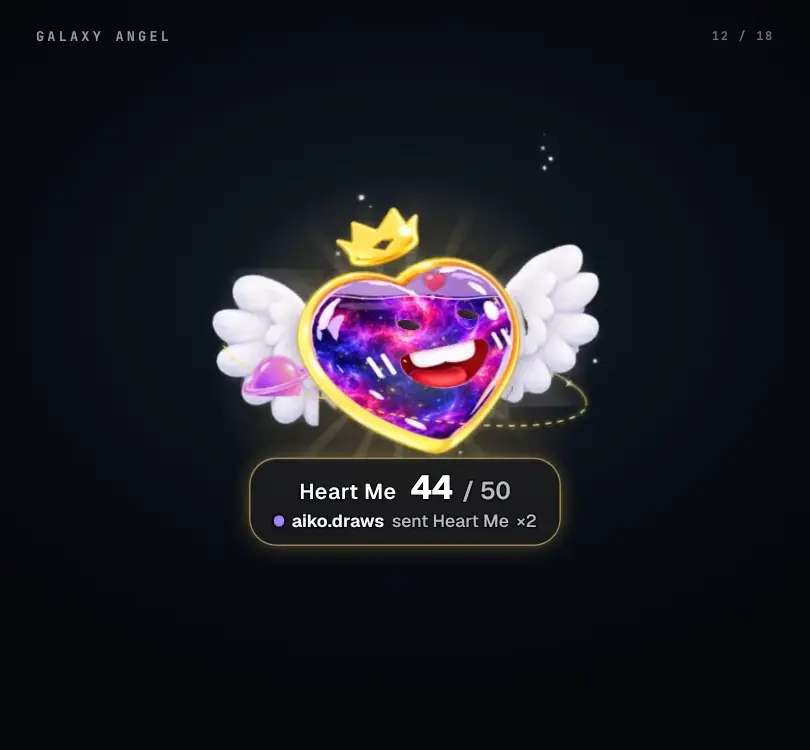
Explore existing iTok artwork, from Heart Me characters to gift jars and games. These are still captures with example data.
Choose a character for your Heart Me goal. Confirmed level-up celebrations have their own settings.
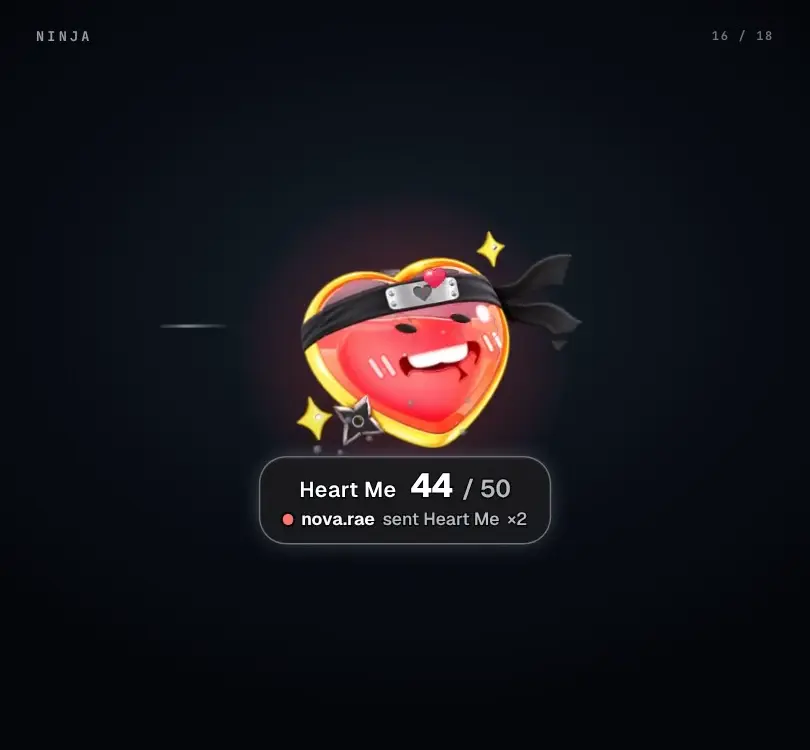
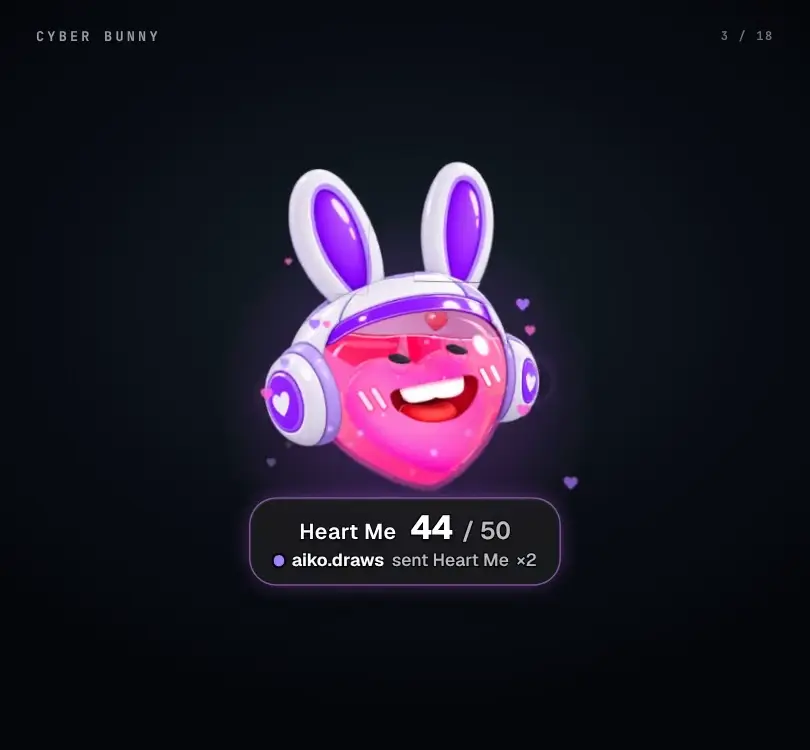
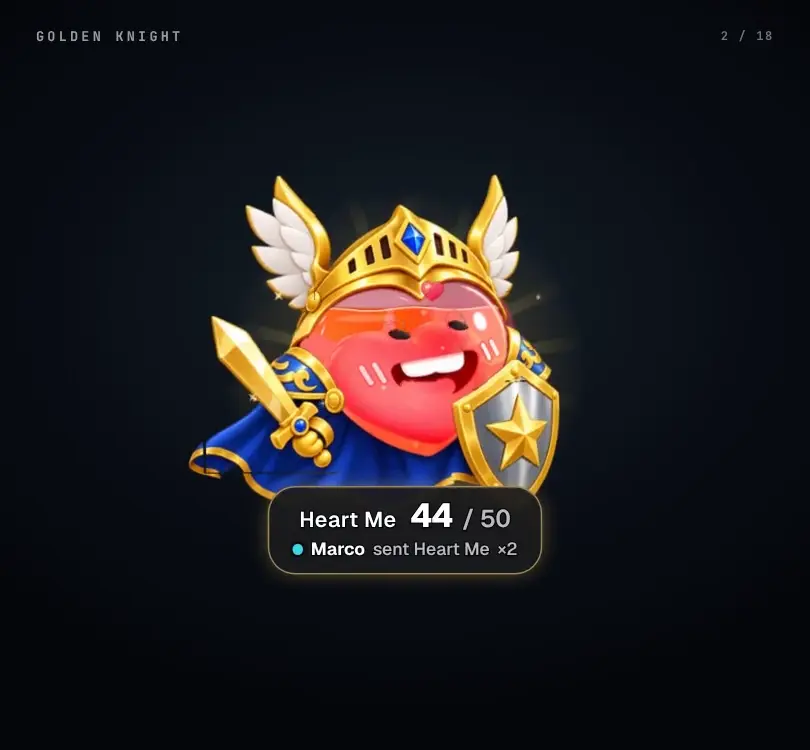
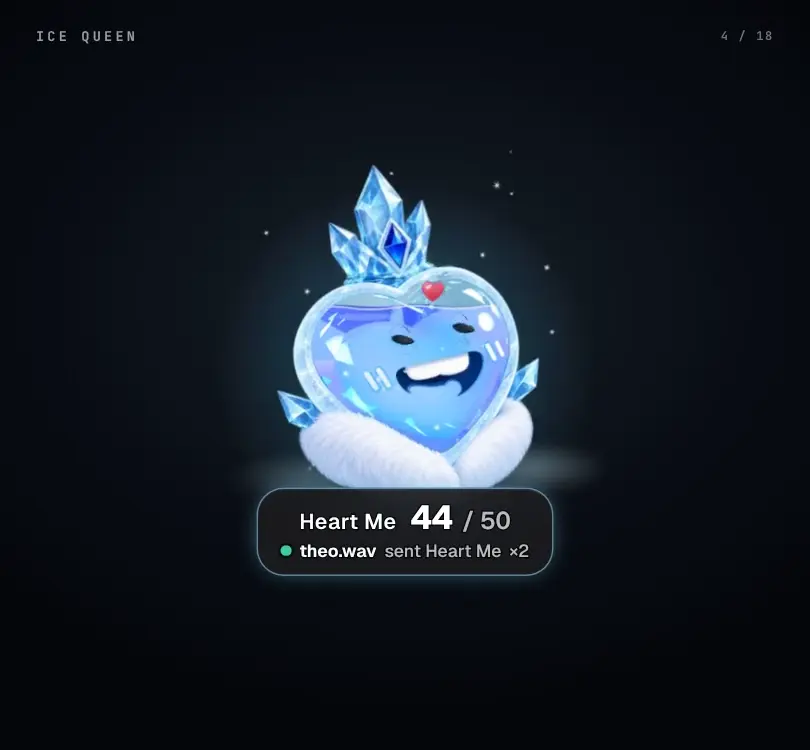
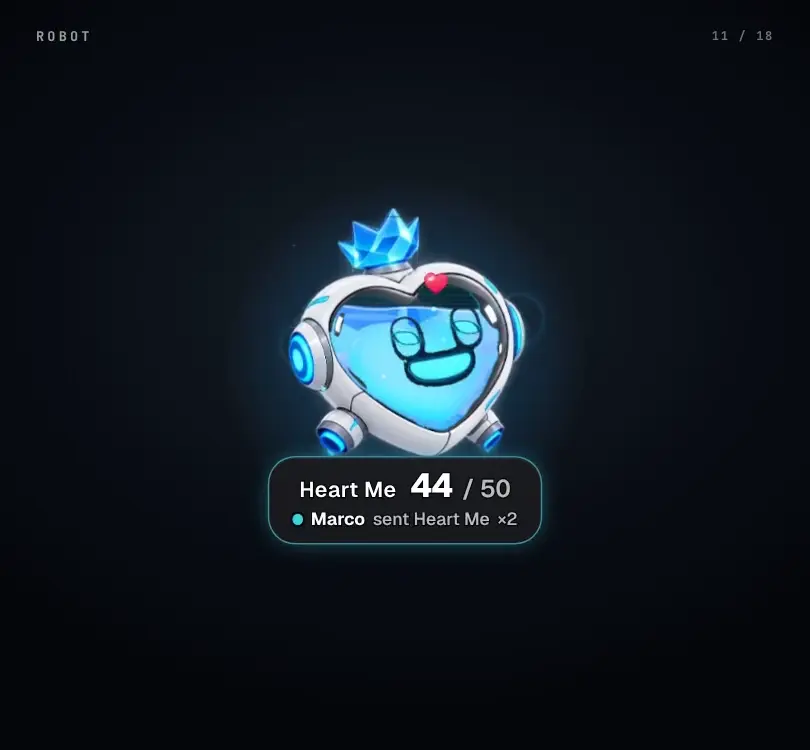
Example viewers, gifts and scores. Only Play starts a silent video.
Use a portrait or landscape scene, or add individual widgets to the layout you already have.
Move and resize widgets, choose their look and save a scene in the visual editor.
Preview keeps changes in the editor until Show on stream. Turn on Live edits when you want saved changes to apply as you work.
Use the full scene or a separate widget in OBS Studio, TikTok LIVE Studio or Streamlabs. Keep iTok connected for incoming events.
Choose the link behavior in Studio before adding it to your streaming software.
Follows the widget’s saved appearance, size and position. Keep that widget enabled in iTok.
Centers the selected widget in its source. A link copied from a design keeps that design; editor moves do not reposition an auto-fit source.
Replacing an older source? Paste the chosen new link into that source once, then check its output before your next LIVE.
For creators who want to design one stream look and keep its tools together.
Arrange your widgets in a visual scene instead of managing every position in your streaming software.
Choose the full scene or separate widget and alert sources for the setup you already use.
Heart Me, gift jars, goals, TTS, actions, battles and Connect Four share the same Studio.
Explore sample data before choosing a plan. Downloads and signup never start a subscription.
Public beta end date: November 28, 2026 at 12:00 a.m. ET. Early-access plans start at $20/month.
Creating an account never starts a paid subscription. You choose a plan and confirm any purchase in secure checkout.
Create an accountNo. iTok is an independent tool and is not affiliated with or endorsed by TikTok.
No. iTok only needs your public TikTok username to receive events from your LIVE.
Any software with a browser source, including OBS Studio, TikTok LIVE Studio and Streamlabs. Use 1080 × 1920 for portrait or 1920 × 1080 for landscape.
Your overlay needs a connected iTok session to receive LIVE events. In a browser, keep your Studio tab open. On desktop, keep iTok running; you can minimize its window.
You need an iTok account with current Studio access and your TikTok username. Everyone can explore the sample Studio without connecting a LIVE.
Anyone can explore the sample Studio for free. Public beta ends November 28, 2026 at 12:00 a.m. Eastern Time. Early-access plans start at $20/month. Your beta never converts to a paid subscription automatically.
The sample Studio is open to everyone. Compare early-access plans for your own Studio tools and TTS credits.